Sign in to which Dashivo?
Your own phones, or your company's fleet. Each has its own account.
New to Dashivo Pro? Talk to us and we'll set up your company.
Questions, answered.
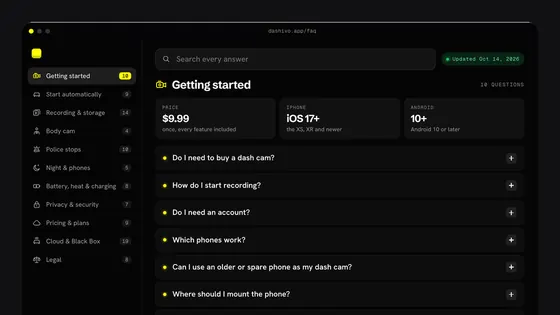
Plain answers about Dashivo™: recording, starting it automatically, the body cam, police stops, battery and heat, privacy, Cloud, plans and the law.
Pick a topic, or search every answer. Anything marked Coming soon isn't in the app yet.
Getting started10 questions
Do I need to buy a dash cam?
No. Dashivo turns your phone into a dash cam and a body cam. Put it in a mount, plug it in and tap record.
How do I start recording?
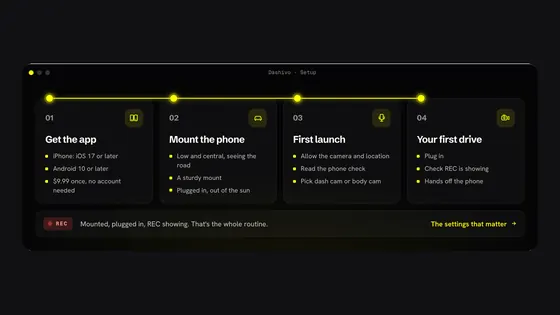
Open Dashivo and allow the camera, location and microphone, then tap record. Opening the app starts recording by itself after that. The setup guide shows each step, and Dashivo can also start when you get in the car.
Do I need an account?
No, not to record. The app works on its own from the first launch. A free account at dashivo.app/account, made in the app or on the web, shows your Driver Score, cars and phones on a phone, tablet or computer, and is needed for Dashivo Cloud.
Which phones work?
iPhones on iOS 17 or later, and Android phones on Android 10 or later. Recording the road and the cabin at once needs a phone that runs both cameras together: on iPhone, the XS or XR and newer. See which phones work.
Can I use an older or spare phone as my dash cam?
Yes, and it works well. Set up a second phone or tablet as the dash cam that stays mounted, and your everyday phone stays free for calls, navigation and delivery apps.
We suggest a used or refurbished phone or tablet from 2024 or newer, for sharper video and less heat. Dashivo runs on iPhone and iPad with iOS 17 or later, and on Android 10 or later. See which phones work. On the same Apple ID or Google account, you don't buy the app again.
It doesn't need its own phone plan. It can use your everyday phone's Personal Hotspot for Cloud uploads and live view. A hotspot counts as cellular, so to send everyday clips over it, turn on Use cellular for everyday driving on the dash cam phone (Settings › Plan & Cloud › Cloud uploads); police stop and accident clips upload either way. With Dashivo Cloud, it counts as one of the up to 4 phones or tablets on your account.
- Keep it plugged in while you drive, and set a charging limit.
- Use a solid mount low on the windshield or on the dash, where it sees the road. Where to mount it.
- Let it join your hotspot by itself. iPhone and iPad: with Instant Hotspot (both on the same Apple Account), set Settings › Wi-Fi › Auto-Join Hotspot to Automatic. Android: join your hotspot once, then turn on Auto-connect for it (Auto reconnect on Samsung).
- Using a tablet? Pick one with GPS for your speed and location. Most Wi-Fi-only tablets, including Wi-Fi-only iPads, don't have it.
Where should I mount the phone?
Low on the windshield or on the dash, near the middle, where it sees the road and doesn't block your view. Some states only allow certain spots on the glass, so check what your state allows. Set it up before you drive and don't handle it on the road.
Does it work without a signal?
Yes. Recording, the stamp, your speed and your miles all work without signal. The speed-limit sign keeps roads it has already loaded for 30 days. Street and city names need data; without it, the stamp shows your GPS coordinates.
Does the phone need to be plugged in?
Yes, keep it plugged in while you drive. Recording video all trip uses more power than a battery alone can give. A charging limit keeps a phone that lives on the charger from sitting at 100% in the heat.
Does Dashivo keep recording if I switch to another app, like DoorDash or Uber?
On iPhone, no. Recording pauses while you're in another app. This is Apple's rule for every app on the App Store, not a Dashivo choice: iPhone apps may only use the camera while they're open on screen. We follow Apple's requirements so Dashivo can stay on the App Store. Recording starts again by itself as soon as you come back to Dashivo. While it's paused, your trip, your miles and crash detection keep going. Dashivo tells you each time recording pauses; you can turn that off in Settings › Notifications › Warn me when recording stops.
- Keep Dashivo on screen while you drive. Screen off keeps it recording with a dark screen.
- Use CarPlay if your car has it and your delivery app works with it: the delivery app runs on the car's screen while Dashivo stays on your phone.
- Use a second phone as your dash cam, and keep your everyday phone for your delivery apps. How that works.
On Android, yes, while you're driving. Dashivo keeps recording when you switch apps. The notification reads “Recording while you drive” and has a Stop button. If the phone is parked for 10 minutes with Dashivo off screen, recording stops (“Dashivo stopped recording: parked”). When you're not driving, leaving Dashivo stops recording. A police stop, an accident, Parked Guard, or body cam with the screen off in your pocket keeps recording. You can turn this off in Settings › Recording & Camera › When you leave Dashivo › Keep recording while you drive (on until you turn it off).
Is it in the App Store and Google Play yet?
It's on Google Play now, and coming soon to the App Store. Get it from the download page; the App Store badge there turns into a link the day that listing goes live.
Start Dashivo automatically9 questions
Can Dashivo start when I get in the car?
Yes. Opening Dashivo starts recording, so anything that opens it starts your drive: Siri, a button, or an automation you set up once on your phone (plug in, CarPlay or your car's Bluetooth). Settings › Dash cam › Start automatically lists every option. It records with your usual settings, including sound, so check the recording laws for your state.
Ask when my car starts Coming soon will ask "Start recording?" when you walk up to a car with a Black Box running Black Box OS. It stays off until you turn it on.
Can I start Dashivo with Siri or a button on iPhone?
Yes. Say "Hey Siri" and one of the phrases below. They work on every iPhone with iOS 17 or later, with nothing to set up.
- "Start dash cam in Dashivo" or "Record with Dashivo"
- "Dashivo police stop"
- "Start body cam in Dashivo"
- "Stop recording in Dashivo"
A start uses your saved settings (cameras, and sound from Settings › Dash cam › Record sound). Stop recording asks for Face ID or your passcode and never ends a police stop. Siri opens the police stop screen; tap POLICE to start. For one press, use the Action button or a Control Center control.
How do I put Police stop on the Action button?
On iPhone 15 Pro and later: Settings › Action Button, swipe to Shortcut, tap Choose a Shortcut and pick Police stop. Then press and hold the Action button: Dashivo opens on the police stop screen, and one tap on POLICE starts the stop. With iOS 18 or later, swipe to Controls and pick Dashivo police stop instead to start a stop with the press alone. Pick Start dash cam if you'd rather start the dash cam.
1Open Settings, tap Action Button
2Swipe to Shortcut, tap Choose a Shortcut
3Pick Police stop (or Start dash cam)
Settings › Action Button › Shortcut › Choose a Shortcut › Police stop
Our own drawing of iOS 27. Names and layout can differ a little between versions and models.
How do I add Dashivo to Control Center or the Lock Screen?
On iOS 18 and later: swipe down from the top right corner, tap + at the top left, then Add a Control, search for Dashivo and tap Record with Dashivo or Dashivo police stop.
1Swipe down from the top right corner, tap + at the top left
2Tap Add a Control
3Search for Dashivo, tap Record with Dashivo or Dashivo police stop
Control Center › + › Add a Control › Dashivo › Record with Dashivo
Our own drawing of iOS 27. Names and layout can differ a little between versions.
For the Lock Screen: touch and hold it, tap Customize, then Lock Screen, remove one of the two controls at the bottom and add a Dashivo control in its place.
How do I make my iPhone open Dashivo when I plug in or connect to CarPlay?
In the Shortcuts app on iOS 27: tap +, Add Action, and pick Dashivo's Start dash cam. Then tap Edit › Automation and choose CarPlay › Connects, Bluetooth › your car, or Charger › Is Connected. Turn on Edit › Info › Privacy › Allow Running When Locked so it runs without asking.
1Tap the Add button
2Tap Add Action, search Start dash cam, tap Dashivo's action
3Tap Edit › Automation, then CarPlay › Connects (or Bluetooth, or Charger)
4Tap Edit › Info › Privacy, turn on Allow Running When Locked, tap Done
Shortcuts › + › Add Action › Start dash cam
Edit › Automation › CarPlay › Connects
Edit › Info › Privacy › Allow Running When Locked › Done
Our own drawing of iOS 27. On iOS 26 and earlier the steps differ; see below. Names and layout can differ a little between versions.
On iOS 26 and earlier: Shortcuts › Automation › + › Create Personal Automation, pick CarPlay, Bluetooth or Charger, choose Run Immediately, then add Start dash cam. CarPlay or your car's Bluetooth is the better trigger: a charger at home would start recording too.
How do I open Dashivo automatically on a Samsung Galaxy?
Use Modes and Routines: Settings › Modes and Routines › Routines › Add (+). Under If, choose Bluetooth device › your car. Under Then, choose Apps › Open an app › Dashivo. Tap Save.
1Open Settings, tap Modes and Routines
2Tap Routines, then Add (+)
3Under If, choose Bluetooth device and your car
4Under Then, choose Apps › Open an app › Dashivo, then Save
Settings › Modes and Routines › Routines › Add
If › Bluetooth device › your car › Done
Then › Apps › Open an app › Dashivo › Done › Save
Our own drawing of One UI 9. The names can differ a little between One UI versions and models.
Pick your car's Bluetooth rather than Charging status, so plugging in at home doesn't start recording. In Dashivo, Settings › Dash cam › Start automatically shows these steps too.
How do I use the Dashivo tile and icon shortcuts on Android?
Touch and hold the Dashivo icon for Dash cam, Police stop and Body cam; tap one to start it, or drag it to your home screen. Police stop opens the police stop screen: tap POLICE to start. For the Quick Settings tile, open Settings › Dash cam › Start automatically and tap Add the Dashivo tile (Android 13 and later). Shortcuts and the tile never stop recording: a police stop ends only in the app.
What about Pixel and other Android phones?
Say "Hey Google, open Dashivo" and it starts recording. On a Pixel 4a (5G) or later, Quick tap can open Dashivo when you double tap the back of the phone: Settings › System › Gestures › Quick tap › Open app › Dashivo.
1Open Settings, tap System
2Tap Gestures
3Tap Quick tap
4Turn on Use Quick tap, choose Open app, then Dashivo
Settings › System › Gestures › Quick tap › Use Quick tap › Open app › Dashivo
Our own drawing of Android 17 on a Pixel. Names can differ a little between versions and models.
The icon shortcuts and the Dashivo tile work on every Android phone. Pixel phones have no built-in way to open an app when you connect to your car.
How do I manage or turn these off?
Nothing starts unless you set it up, and each one is turned off where you set it:
- Siri: turn off Siri for Dashivo in your iPhone's Settings app.
- Action button: Settings › Action Button, then swipe to another action.
- Control Center or Lock Screen: edit it and tap the minus on the Dashivo control.
- Shortcuts automations and Galaxy routines: turn them off or delete them in the Shortcuts app or Modes and Routines.
- Dashivo tile: open Quick Settings, tap the pencil and drag the tile out.
Recording & storage14 questions
Can Dashivo record the road and the cabin at the same time?
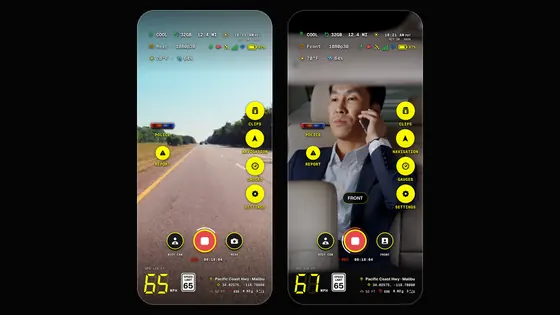
Yes. Turn on Settings › Dash cam › Cameras to record › Front and rear. The rear camera records the road and the front camera records the cabin, each into its own 1080p video, with sound if Record sound is on. It needs a phone that runs both cameras at once (which phones work), mounted high near the mirror so the cabin camera sees over the seats.
How does loop recording work?
Dash cam mode records nonstop in a loop. When the space you give it is full (32 GB to start), the oldest recording makes room for the new; your own photos and apps are never touched. Change the space in Settings › Storage & clips › Storage. Turn looping off there and Dashivo stops before it fills the phone, keeping 2 GB free.
What's stamped on the video?
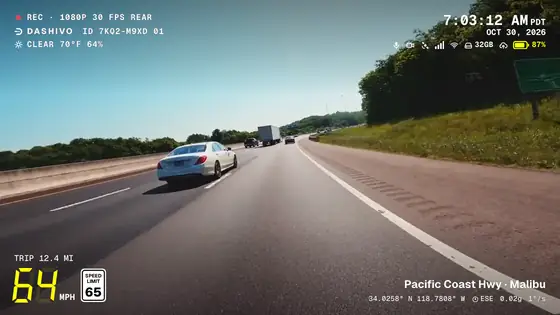
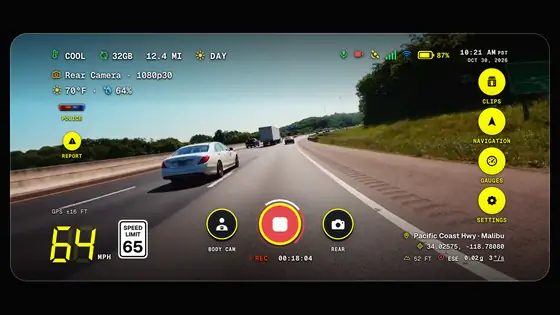
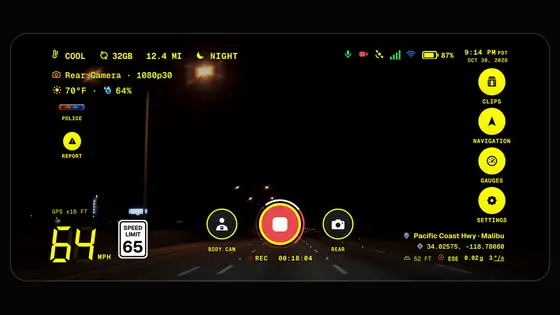
REC with the quality, frame rate and camera, the Dashivo logo with the recording's evidence ID, the weather, the time and date, the phone's status, your speed beside the speed-limit sign, the trip, the street and town, GPS coordinates, compass heading, G-force and rotation, burned into every video. With Black Box OS (Beta) and an OBD-II reader, the car's turn signals, brake, gas pedal and headlights too. It's part of the video, so it shows in any player and when you share a clip. Choose each item in Settings › Dash cam › Stamp on the video.
What quality does it record?
1080p, 1440p (2K) or 4K: pick it in Settings › Dash cam › Video quality. 1080p is the default: it runs cool and keeps the most hours on the phone. 2K and 4K have more detail but run warmer and use more space and battery; a phone that can't record them shows Not on this phone. An hour uses about 4.6 GB in 1080p, 5.5 GB in 2K and 7.3 GB in 4K.
Does Dashivo record sound?
Yes, in the US and wherever recording sound in your own car is generally allowed; elsewhere it starts off. Turn it on or off in Settings › Dash cam › Record sound (on Android, under Sound). Some states require everyone's consent to record a conversation, so check the recording laws.
Your music, maps and calls keep playing as usual. During a phone call the video keeps recording without sound, and sound comes back when the call ends.
Will Dashivo take over my AirPods or my car's Bluetooth?
No. Dashivo records with the phone's own microphone and never claims your AirPods, headphones or the car's audio, or switches them into call mode. Navigation directions play in your AirPods or the car when they're connected to the phone, and on the phone's speaker otherwise, while recording carries on.
Why does a clip open muted?
So your own music keeps playing. Tap the speaker to hear the clip. Beside it, AirPlay (iPhone) or Sound output (Android) picks where the sound plays; on iPhone, AirPlay also sends a clip to your TV.
Can it record wider?
Yes, on phones with an ultra-wide lens, and it does by default: Field of view in Dashivo's video settings starts on Wide (Normal is the other choice). It catches the lanes beside you, though faraway plates look smaller. After dark, night mode switches to the main lens for more light.
Where are my clips?
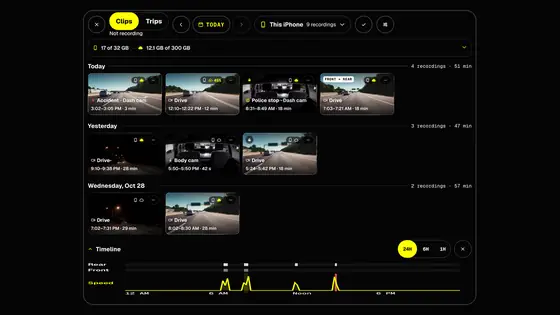
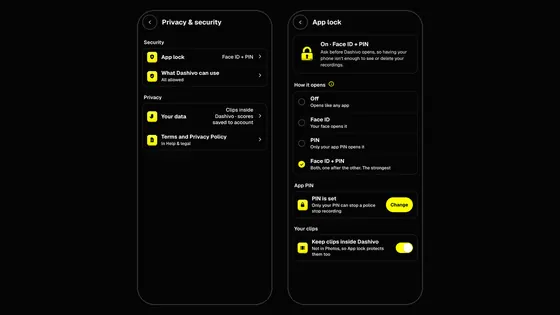
In the app's Clips screen, by day. They stay inside Dashivo, behind the app lock and out of Photos, the Gallery and cloud backups. To keep them in Files (iPhone) or the Gallery (Android) instead, turn off Settings › Privacy & security › App lock › Keep clips inside Dashivo. More about clips.
How do I save a clip to Photos, Gallery or Files?
Open the clip in Clips and tap Save to Photos on iPhone or Save to Gallery on Android. Save to Files is under More. To copy every clip at once, use Settings › Storage & clips › Storage › Export all clips. A saved copy is yours, outside the app lock.
To stop the loop from ever replacing a clip, tap Keep instead. Keep holds the clip and the other camera's video of the same moment on your phone. A kept clip is protected, so it can only be deleted on dashivo.app.
What happens if I uninstall?
Clips inside Dashivo are deleted with the app. Save the ones you want first, or copy them all with Settings › Storage & clips › Storage › Export all clips. Copies already in Photos, the Gallery or Files stay.
Where are Miles and the mileage log?
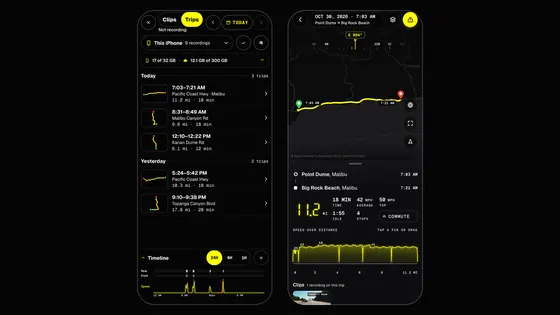
In Settings › Driving & miles: your trips, the mileage log with PDF and CSV export, and the Log trips switch. You can fix or delete a trip and add one by hand. The IRS deduction shows in the USA, and Miles uses kilometres if your phone is metric.
Does Dashivo log my drives with the app closed?
Yes, with Also in the background on (Settings › Driving & miles › Log trips) and location set to Always. It logs the trip and keeps accident detection on during the drive, without video, and stops when you park. On iPhone the Lock Screen shows it; a passenger can tap Stop for this drive.
Does the speed read past 99?
Yes. The HUD and the Dashboard gauges show three-digit speeds in full. Switch between mph and km/h under Units in Settings.
Body cam4 questions
What is body cam mode?
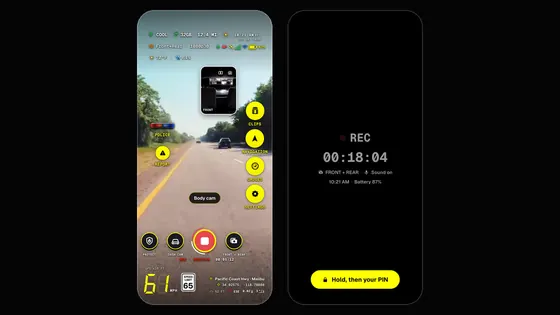
Recording on foot, on a bike or as a passenger. Body cam mode records the front and rear cameras at once, each into its own video, with sound if Record sound is on. Switch to it with the mode button on the screen.
What is Touch protection?
It stops accidental taps in a pocket or on a strap. Recording keeps going, the screen goes dark with a big REC, and every touch is ignored until you hold the unlock button for a second and a half. Choose Ask, Always or Never under Touch protection in Dashivo's body cam settings.
What does Screen off do?
It turns Dashivo's screen dark while it keeps recording, which saves power and heat. On iPhone the app still has to stay open. Hold a finger on the screen for a second and a half to wake it.
Can I wear the phone?
Yes: in a chest harness, on a strap or in a vest pocket with the camera clear. Worn on your chest, pick the camera facing out, or record both.
Police stops10 questions
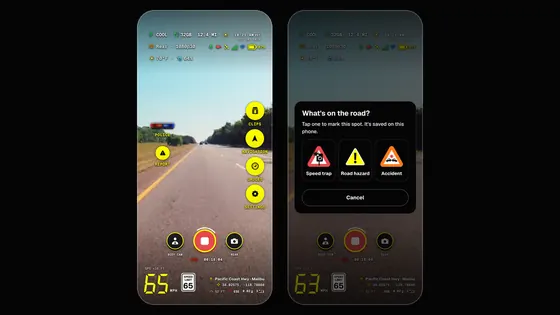
What happens when I tap POLICE?
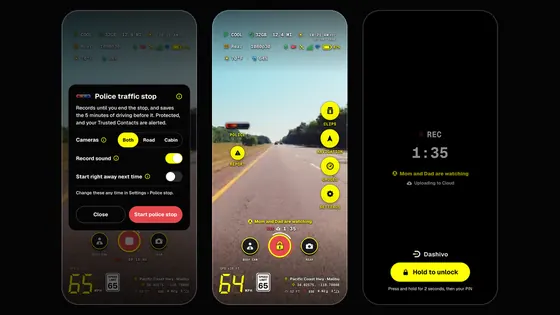
Dashivo records, with sound if Record sound is on, until you end the stop: tap POLICE again, or press and hold the record button for 1.5 seconds and choose End police stop. It saves every few seconds, so each part is safe even if the phone is grabbed or switched off. The stop and the 10 minutes before it are locked, so loop recording never replaces them. Ending the stop keeps recording in an ordinary clip, since you'll probably drive on.
Can I choose what happens first?
Yes. With Settings › Safety › Police stop › Ask me first on, POLICE opens a short window where you pick the cameras and sound for this stop. Turn it off and POLICE starts at once with your saved choices, which is fastest when you're pulled over.
Can someone open the app with my face during a stop?
Not if you turn on Settings › Privacy & security › App lock › Police stop: require the PIN. Then during a stop, and for 30 minutes after, Dashivo asks for its own PIN and never Face ID. More about the app lock.
What should I do with the phone during a stop?
Tap POLICE as you pull over, then leave the phone alone. Keep your hands where the officer can see them and follow their instructions. Dashivo records what happens; it doesn't argue for you. This isn't legal advice.
Can the stop be deleted?
Not in the app: police stop clips can't be deleted there, and loop recording never replaces them. But if the phone is taken or wiped, its clips go with it. For a copy away from the phone, save clips to Photos or the Gallery, record to a USB-C drive on Android, keep an encrypted copy in Dashivo Cloud, which uploads a stop as it records, or use a Black Box with Black Box OS (Beta), which copies each piece as it's saved. In Cloud, protected clips can be deleted only on dashivo.app, after you confirm it's you.
If an officer takes my phone and deletes Dashivo, is my footage gone?
Footage kept only inside the app goes with it, on iPhone and Android, including anything that hadn't uploaded yet. Clips you chose to keep in Photos or the Gallery usually stay, but can be deleted there too. This is why Dashivo Cloud matters: a police stop uploads while it's still recording, so with a signal the first parts reach Cloud within seconds to a minute. Deleting the app doesn't touch them, a stop is never replaced when Cloud is full, and deleting it needs your account (it waits 30 days in Recently deleted).
Your Trusted Contacts get an alert if Dashivo goes quiet for 5 minutes during a stop. App lock doesn't prevent deleting the app, since no phone lets an app block its own removal. With no signal, footage waits on the phone; a Black Box with Black Box OS (Beta) copies it over its own Wi-Fi, no cell signal needed. Cloud starts at $4.99 a month for 100 GB, where it's sold. See pricing.
What happens to police stop clips without Cloud?
They're saved on your phone, locked and safe from loop recording, and nothing is uploaded. Your Trusted Contacts still get your police stop alerts and where the stop is. With Dashivo Cloud, a copy also goes up as the stop records, encrypted on your phone first, on Wi-Fi or cellular, ahead of everything else.
Is it legal to record the police?
Generally yes, in public, for video. Most federal appeals courts have said the First Amendment protects recording police doing their job in public, but sound still follows your state's consent law and you must not get in the way. See your state in the recording laws table. This isn't legal advice.
What happens if I'm in an accident?
While you drive, Dashivo watches for a crash. If it detects one, it locks the clips around it and asks “Were you in an accident?” until you answer. Call opens your phone with the local emergency number, 911 in the US, 112 in most of Europe; nothing calls anyone on its own.
What is “If I'm arrested”?
A release you set up ahead of time in Settings › Trusted Contacts: start a police stop and a timer starts. If you don't check in in time, the Trusted Contacts you chose get where it happened and, with Dashivo Cloud, the stop's footage, locked on your phone first. They also get an alert when you press POLICE (you can turn that off) and when you check in; these alerts work without Cloud. During a stop and for 30 minutes after, only your app PIN checks in, and an optional emergency PIN works like your app PIN and also sends the release to your Trusted Contacts at once. It doesn't contact the police or a lawyer.
Can my Trusted Contacts watch a police stop live?
Yes, with Dashivo Cloud. In Settings › Live stream, choose Dashivo live (recommended) or your own YouTube channel. Only one runs, and your phone keeps the full-quality recording either way.
- Dashivo live: the Trusted Contacts who get your police stop alerts get one private link, by email and in their Dashivo app. It opens in a browser on a phone, tablet or computer with no sign-in, with sound on when the stop records sound. Your clips still need their sign-in. On dashivo.app the page also shows a map that follows you, and your last position if the stream stops.
- Your YouTube channel: connect it once, and each stop goes live as Unlisted or Private, never public, when you press POLICE (or when you tap Go live). If YouTube doesn't start, Dashivo live takes over on the same link.
A stream that's already running isn't cut if your plan ends. Turn live video off in Settings › Safety › Police stop.
Night & phones5 questions
How does night mode work?
When the picture gets dark, Dashivo switches to the main lens, which takes in more light, and brightens the picture. NIGHT shows next to REC while it's on. It waits 8 seconds of darkness to turn on and 20 seconds of light to turn off, so headlights and tunnels don't flip it. More about night mode.
Can I read the HUD over a bright sky?
Yes. Every readout has a black shadow that grows stronger over bright patches like the sky or a white car, and stays faint on a dark road.
Which phones are best at night?
Phones with a large main camera sensor and a bright lens. The app's phone check tells you how yours does, and the phones page lists the ones we recommend.
Why does Dashivo stay on screen on iPhone?
iPhone apps may only use the camera while they're open on screen. This is Apple's rule for every app on the App Store. Switch apps or lock the iPhone and recording pauses, then starts again by itself when you're back in Dashivo, and Dashivo tells you. Screen off keeps it recording with a dark screen. With the app closed, Dashivo still logs your drives and keeps accident detection on, without video. Using a delivery app at the same time.
Battery, heat & charging8 questions
Will it drain or overheat my phone?
Not if it's plugged in. Dashivo records in 1080p by default, which runs cool. In 2K or 4K, if the phone gives its highest heat warning, Dashivo records in 1080p until it has cooled for five minutes. With two cameras, the cabin camera pauses first. How to keep it cool.
How do I keep my phone cool on the windshield?
These help the most, in order:
- Keep the sun off it. Mount it low and out of direct sun where your state allows, and use a sunshade when you park.
- Let the A/C reach it. A mount near a vent keeps the phone much cooler.
- Take the case off in summer.
- Charge with a cable, 15 to 25 W over USB-C. Wireless mounts run warmer.
- Set a charging limit once.
- Darken the screen with Screen off, and keep Settings › Dash cam › Video quality on 1080p, the default.
Should I set a charging limit?
Yes, if the phone sits on a charger in the car. Heat and a full battery together wear a battery out fastest, and stopping at 80% costs nothing on a charger. Most recent phones have a limit built in:
- iPhone 15 and later: Charge Limit, 80%. Step by step.
- Samsung Galaxy: Battery protection, Maximum, 80%. Step by step.
- Google Pixel 6a and later: Limit to 80%. Step by step.
iPhone, Samsung Galaxy, One UI, Google Pixel and Android are trademarks of their owners. Dashivo isn't affiliated with them, and the settings drawings here are our own.
How do I set it on iPhone?
On iPhone 15 and later: Settings › Battery › Charging, then choose 80%.
1Open Settings, tap Battery
2Tap Charging
3Choose 80%
Settings › Battery › Charging › 80%
Our own drawing of iOS 27. The steps are the same in iOS 26. Labels can shift a little between versions and models.
On iPhone 14 and earlier, turn on Optimized Battery Charging in Settings › Battery › Battery Health & Charging instead.
How do I set it on a Samsung Galaxy?
On One UI 7 and later: Settings › Battery › Battery protection. Turn it on, choose Maximum and slide to 80%.
1Open Settings, tap Battery
2Tap Battery protection
3Turn it on, choose Maximum, slide to 80%
Settings › Battery › Battery protection › On › Maximum › 80%
Our own drawing of One UI 9, from Samsung's steps for One UI 7 and later. Labels can shift a little between versions and models.
On One UI 5 and earlier it's Settings › Battery and device care › Battery › More battery settings › Protect battery, which stops at 85%.
How do I set it on a Google Pixel?
On a Pixel 6a or later: Settings › Battery › Battery health › Charging optimization. Turn on Use charging optimization and choose Limit to 80%.
1Open Settings, tap Battery
2Tap Battery health
3Tap Charging optimization
4Turn it on, choose Limit to 80%
Settings › Battery › Battery health › Charging optimization › Limit to 80%
Our own drawing of Android 17 on a Pixel. Labels can shift a little between versions and models; on newer Pixels, Battery may read Battery and charging.
Pick Limit to 80% rather than Adaptive Charging for a phone that lives in the car. It needs an update from December 2024 or later.
Can Dashivo change these for me?
No. No app can change a phone's charging settings; you set them once in the phone's own Settings. What Dashivo does by itself: it shows the phone's heat (Settings › Dash cam › Phone heat), pauses the cabin camera first when the phone warms, and lowers the resolution at the highest heat warning until it cools.
What do Cool, Warm and Hot mean?
Our three words for heat. For the battery, Cool is under 40°C (104°F), Warm is 40°C (104°F) to 55°C (131°F), and Hot is 55°C (131°F) and above. On the phones list they're our estimate of how warm each phone runs while recording; we haven't measured them yet.
Privacy & security7 questions
What does the app send to you?
No footage, no audio and no tracking. To show weather, speed limits and (on Android) navigation, the app sends our servers an approximate position that is never stored. Beyond that, only update checks, your account and a Driver Score summary if you sign in (numbers, never places), and anything you choose to send us, like diagnostics. Crash reports are optional and off until you turn them on.
What is “Send diagnostics to Dashivo support”?
If something isn't working, Settings › Help › Send diagnostics to Dashivo support sends the app's technical log, so we can tell an app problem from a phone or setup one. It holds no footage, sound, places or names, it's only sent when you tap Send, and we delete it after 30 days.
Does Dashivo send crash reports?
Only if you say yes. The app asks once, “Send crash reports to Dashivo?”, and Settings changes your answer any time. A report holds only what went wrong: the kind of crash or freeze, the app version, your phone model and system version, the screen it happened on, a short technical trace of our own code and the hour, with a random ID that changes every month. Never your location, video, sound or account, and we keep it 90 days. In Dashivo Pro, your company decides for its phones.
What is the app lock?
Dashivo's own lock on top of your phone's, so someone holding your unlocked phone still can't watch, share or delete your recordings. Turn it on in Settings › Privacy & security › App lock and pick Face ID or Touch ID, a Dashivo PIN, or both. It never locks while you're driving, and wrong PINs never erase anything.
Can you watch my footage?
No. Dashivo staff never see or hear your footage. Without Cloud it never leaves your phone, and Cloud storage encrypts clips on your phone before they leave it.
Does Dashivo track my location?
Your location stays on the phone for your speed, the stamp, your miles and Parked Guard. For weather and speed limits, an approximate position goes to our servers to answer the request and is never stored or linked to you. Trips leave the phone only with Dashivo Cloud, where Save trips to my account is on by default (you can turn it off), locked on your phone first so only you can view them.
Do you sell data or show ads?
No, and no. There are no ads in Dashivo and we never sell data. The app's price and Cloud storage are how we're paid.
Can I download or delete my data?
Yes. Sign in at dashivo.app and open Account › Privacy & data to download everything we store about you, or to delete your account. Deleting the account doesn't cancel a store subscription; cancel that in the App Store or Google Play.
Pricing & plans9 questions
Is there a subscription?
Not for the app. Dashivo is $9.99 once on the App Store and Google Play (App Store coming soon), with every feature included. The only add-on is Dashivo Cloud, $4.99 a month or $49.99 a year per 100 GB. See pricing.
What do I get for $9.99?
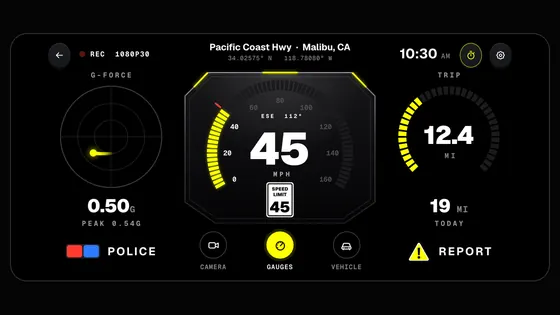
Everything: 4K on phones that can, the road and the cabin at once, body cam, the one-tap police stop, the HUD and the stamp, Dashboard gauges, Stopwatch, Clips, Miles and App lock. There's no Free or Plus version and nothing to unlock later.
Do I pay again for each phone?
Not on the same store account: one purchase covers every phone on the same Apple ID or Google account. A phone on the other platform buys it once there.
What does Cloud storage include?
Dashivo Cloud is $4.99 a month or $49.99 a year (2 months free) per 100 GB, in 100 GB steps up to 1 TB, for up to 4 phones or tablets on one account; the first 100 GB comes with the Cloud portal. It keeps your clips away from your phone, encrypted on your phone first, and brings your clips, events and Miles to dashivo.app. With Cloud, your Trusted Contacts can see the clips you share, you can stream a police stop live, and you can archive clips to your own Google Drive, or iCloud Drive on iPhone. It's capped at the size you choose, so there's never an overage. Cloud needs a free Dashivo account; get Cloud in your account.
How do I get Dashivo Cloud?
Sign in at dashivo.app/account (or make a free account in the app), open Cloud › Plan & billing, pick the size with the slider, choose Monthly or Annual and pay by card. Web checkout is in the USA to start, and Cloud isn't sold in the app yet. Cloud is offered in the US, Canada, Mexico, Australia, New Zealand, Taiwan, Hong Kong, Singapore and the UAE; elsewhere the app and your account say so. Your plan shows on every phone signed in to your account, and Cloud sets itself up on each phone: there's nothing to turn on.
How many phones can use one Cloud plan?
Up to 4 phones or tablets on one account, at every size. A 5th phone still records and keeps its clips, but its uploads wait. Pick which 4 upload with the Uploads switches on dashivo.app under Cloud › Storage. Need more phones? Talk to us about Dashivo Pro.
How do I buy or cancel?
Buy the app once on the App Store or Google Play (App Store coming soon); refunds for the app follow Apple's and Google's policies. Buy Dashivo Cloud in your account on dashivo.app, and cancel it there under Cloud › Plan & billing › Card, cancel and invoices.
What happens if I cancel Cloud or get a refund?
Cancel any time: Cloud keeps working until the end of the period you paid for, and you aren't charged again. When a plan ends, uploads stop and your Cloud clips stay read-only for 30 days so you can download them; then they're deleted. Changed your mind? Cloud bought on dashivo.app gets a full refund within 14 days if you've uploaded less than 1 GB: write to [email protected]. A full refund cancels the plan at once, and the refund email says until when your clips stay read-only. Every payment and refund gets its own email, and your receipts are under Cloud › Receipts.
Dashivo Pro: what does it cost for a company?
Dashivo Pro is for companies with drivers: $20 per device a month, or $200 a year. Each device adds 200 GB to one shared company cloud pool; extra storage is $4.99 a month or $49.99 a year per 100 GB. There's no online signup: talk to us and we set your company up. About Dashivo Pro.
Cloud & Black Box OS19 questions
What is Dashivo Cloud today?
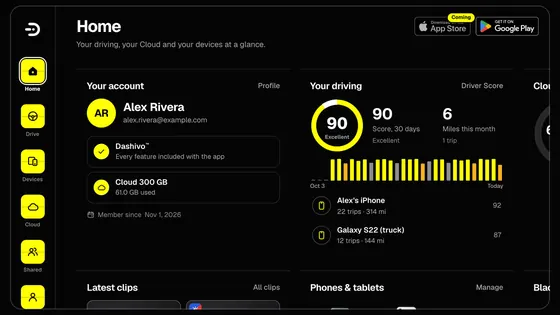
Dashivo Cloud is live. Your account at dashivo.app/account works on a phone, tablet or computer: Home, Drive (clips, events, Driver Score per car and Miles), Devices (cars, phones and your Black Box), Cloud (storage, plan and receipts), Shared (your Trusted Contacts and the people who trust you) and Account. Without a plan you still see your Driver Score, cars and phones; with Cloud, your clips, events and Miles open as soon as you sign in (with Maximum privacy, in a browser you approve on your phone). The Cloud portal.
Can Dashivo see my Cloud clips?
Only you can view your clips. They're locked on your phone before they upload. So that they open as soon as you sign in, Dashivo keeps a locked copy of your Cloud key; each use shows on your account's Security page, and Dashivo staff have no tool to open it.
Want nobody else to be able to, not even Dashivo? Turn on Maximum privacy in the app: Settings › Cloud storage. Then a browser needs your phone's approval and a new phone needs another phone or your backup key.
What uploads to Cloud, and when?
With Dashivo Cloud, clips are encrypted on your phone before they upload. Police stops and accidents go first, on Wi-Fi or cellular, then locked clips, then your everyday driving, which waits for Wi-Fi unless you turn on Use cellular for everyday driving in Settings › Plan & Cloud › Cloud uploads. Clips always stay on your phone too. Each phone sets up Cloud by itself and then starts uploading, with nothing for you to do.
Do I need an unlimited data plan for Cloud?
We recommend one if you use Dashivo Cloud, because video is large: about 4.6 GB an hour per camera at 1080p, 5.5 GB in 2K and 7.3 GB in 4K. Recording the road and the cabin together uses about twice that. Many unlimited plans limit hotspot data, so check yours if a second phone uploads through your hotspot.
No unlimited plan? Leave Use cellular for everyday driving off in Settings › Plan & Cloud › Cloud uploads (it's off until you turn it on). Your everyday clips then wait and upload when the phone is back on a Wi-Fi network it knows, like at home or work.
Police stop, accident and locked clips don't wait: they upload right away on Wi-Fi or cellular. Settings › Data usage shows how much data Dashivo has used.
Is my Cloud private? What is the backup key?
Yes. Your clips are locked on your phone before they upload, and only you can view your clips. So that they open when you sign in, Dashivo keeps a locked copy of your Cloud key; with Maximum privacy it keeps none, and not even Dashivo can open them. The backup key is an extra key that opens your Cloud clips. Cloud keeps it for you on your phones, in iCloud Keychain (iPhone) or Google's end-to-end encrypted backup (Android), and on our servers only locked under your account's key.
- Save a copy (optional with Standard protection; with Maximum privacy you save it when you turn it on): in the app, Settings › Cloud storage › Backup key. Email it to yourself (your phone's own mail app sends it, never our servers), save it as a PDF or copy it into your password manager. We'll never email you the key or ask for it.
- A new phone: sign in on it and your Cloud opens. With Maximum privacy, a new phone on the same Apple or Google account opens Cloud by itself; otherwise your other phone asks “Allow this phone?”: allow it only if both show the same 12-digit code. No other phone? Use your backup key.
- Removing a phone makes a new backup key. Save the new one; the old one stops working.
With Maximum privacy, if you lose every phone, have no iCloud Keychain or Google copy and never saved your backup key, no one can open your Cloud clips, not even us. With Standard protection, sign in on a new phone and your Cloud opens.
What happens when my Cloud is full?
New clips replace the oldest everyday clips, so there's never an overage. Police stops, accidents, impacts, SOS and locked clips are protected: they're never replaced and can use an extra 10% when it's full. To make room yourself, use Free up space on dashivo.app under Cloud › Storage. Deleted clips wait in Recently deleted for 30 days, not counted against your storage, so you can restore them. Protected clips can be deleted only there, after you confirm it's you.
How do I delete a clip from my phone, Cloud or both?
In Clips, tap Delete. When the clip is on your phone and in Cloud, you choose: Delete from both, Delete from phone only, or Delete from Cloud only. A clip that hasn't uploaded yet is simply deleted from the phone and never uploads.
On dashivo.app, Delete offers Delete from Cloud and your phone, or Delete from Cloud only. The phone deletes its copy the next time Dashivo opens on it.
Cloud keeps deleted clips in Recently deleted for 30 days. Restoring one brings back the Cloud copy only: a copy already deleted from a phone stays deleted. Deleting from your phone can't be undone. Copies in your Google Drive or iCloud Drive aren't changed. Police stops, accidents, impacts, SOS and kept clips are protected and can only be deleted on dashivo.app, after you confirm it's you.
Can I archive clips to Google Drive or iCloud Drive?
Yes, with Dashivo Cloud, into your own storage. In the app, both are in Settings › Storage & clips, each with its own switch, so you can use both at once.
- Archive to Google Drive (iPhone, Android and on dashivo.app under Cloud › Storage › Archive): connect your own Google account and the clips go into a Dashivo folder in your Drive. Dashivo can see only the files it puts there.
- Archive to iCloud Drive (iPhone only): copies go to iCloud Drive › Dashivo, using the Apple account and iCloud storage on that iPhone. If iCloud is off or full, Dashivo tells you and the clips wait on your phone.
For each, choose what to archive (police stops, accidents, locked clips, Parked Guard events or every clip), how often (as soon as it's saved, daily or weekly), Wi-Fi only, with or without sound, and whether old copies are deleted after a while.
What is Black Box OS?
Our software for your own Arduino UNO Q. It makes the board an optional Black Box hidden in your car that copies every clip over its own Wi-Fi, so the footage survives if the phone is taken or wiped. It's included with Dashivo Cloud; we don't sell the hardware. About Black Box OS.
How do I get a Black Box?
Get a supported Arduino UNO Q, the Arduino USB-C hub, a microSD card or USB flash drive and cameras yourself. Black Box OS (Beta), the software that makes them a Black Box, is included with Dashivo Cloud and is a download in your Dashivo account, open to every Dashivo Cloud subscriber. More on the Black Box OS page.
To add it to your account, put Black Box OS on the board from your Dashivo account on a computer and keep the board plugged in while it starts: the page adds it to your account over the USB cable. Then set it up with your phone next to it, before it goes into the vehicle: in the Dashivo app, Settings › Black Box › Set up gives it its Wi-Fi and a name. If the page can't reach it, scan the setup QR code the page shows in the Dashivo app, version 1.1.3 or later, with your phone next to the Black Box. The Black Box needs no internet for that.
Do I need Cloud or the Black Box?
Not to use the app: it records, stamps and keeps your footage on your phone on its own, police stop and accident clips too. Cloud storage and the Black Box add a copy away from the phone. A Black Box does need Cloud: Black Box OS is included with a Cloud plan and needs an active one.
What storage can Black Box OS use?
A microSD card or a full-size SD card in the Arduino USB-C hub, or a USB thumb drive or USB-C drive in any of its USB ports: either USB-A port or the USB-C data port, not the USB-C port marked PD. We recommend 128 GB or more, on a high-endurance card made for dash cams. For now, keep just one card or drive plugged in: a later update will choose between them by itself. More in Help.
What happens when I plug a card into my Black Box?
- New or empty: Black Box OS prepares it automatically. The light is amber while it prepares.
- This Black Box's own card: opened, never erased.
- A card with files on it, or from another Black Box: left alone. The light grid scrolls ERASE THIS CARD IN THE APP (code E08) and the Black Box waits for you. Copy off anything you need, then erase it on a computer (exFAT or FAT32), or choose Use this card (erase it) on the Black Box's page at dashivo.app.
Swapped the card and nothing happened? Turn the car off and on once. More in Help.
Can I move my card to another Black Box?
No, by design. Black Box OS encrypts each card with its own key, which lives only inside the Black Box that prepared it. Another Black Box, even one on your account, can't open it and won't erase it by itself, and someone who takes the card sees only scrambled data. Footage already uploaded to Dashivo Cloud is safe there. More in Help.
When does a Black Box erase its card?
Only when you choose Use this card (erase it) on dashivo.app; when you remove the Black Box from your account; or, on a Black Box that was never linked to an account, after five short power-ons in a row. Switching the power on and off never wipes a Black Box that is linked to your account. Writing Black Box OS onto the board again from a computer doesn't erase the card either: it stays locked to your account and opens again once the Black Box is back on it. More in Help.
How do I flash my Black Box again, and when do I need the jumper?
Normally the setup page puts the board into flash mode by itself: a board with a factory Arduino image, another system the page can reach, or a board running Black Box OS that is on no account (the page asks you to confirm first). The flash jumper is only for when the page can't reach the board. On dashivo.app open Set up a Black Box, then Nothing in the list?, then Use the flash jumper: it shows where the JCTL pins are. Put the jumper on the two JCTL pins, unplug the board and plug it back in, then choose it again; it shows up in flash mode. After the flash, the page tells you to take the jumper off; then unplug the board and plug it back in. Never move the jumper while the board has power. A board that is on an account must be removed from that account in the Dashivo app before it can be flashed again over USB. More in Help.
Adding my Black Box fails after I flashed it again. What do I do?
Your phone may still remember the board's old Bluetooth pairing, so adding it fails with "the Bluetooth connection dropped". Forget the pairing, then add the board again. The board's name is DBB- plus 6 characters, shown on the setup page and in the Dashivo app. On an iPhone: Settings › Bluetooth, tap the (i) next to DBB-xxxxxx, then Forget This Device. On Android: Settings › Connected devices (or Bluetooth), tap the gear next to DBB-xxxxxx, then Forget (or Unpair). Then add it again in the Dashivo app under Settings › Black Box. More in Help.
I removed my Black Box. What is the transfer code for?
When you remove a Black Box from your account, dashivo.app shows its transfer code, right after the removal and under Devices › Black Boxes. Giving it to someone, or adding it to another account? They enter this code when they add it. It works for 30 days after removal.
Why a code? Only someone you give it to can add this Black Box as it is. Anyone else has to erase it and start over. Your recordings stay private: the memory card is encrypted, and the Black Box erases its key when it resets. Changed your mind? Add it back with this code.
If someone tries to add it without the code, we tell you by email and in your notifications. More in Help.
What is Parked Guard?
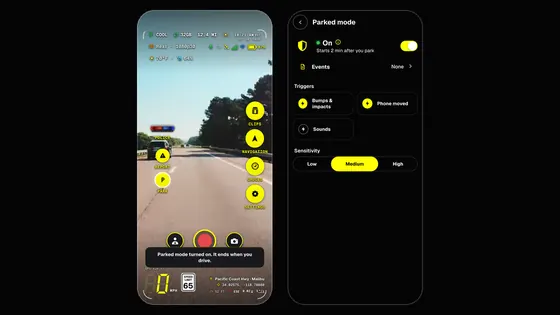
A sentry for your parked car. With Dashivo open on a phone left in the car, it keeps recording with the screen black and watches for bumps, impacts, the phone being moved and, if you allow it, the car's alarm, breaking glass or something hitting the car. It saves the clip, lists it in Events and tells you. It's off until you turn it on in Settings › Parked mode, where you also pick the triggers, the screen and the battery level it stops at. More about Parked Guard.
Does Parked Guard work with the app closed?
On Android it runs as long as Dashivo is recording. On iPhone it films only with Dashivo open on screen; with the app closed, the iPhone still tells you “Your parked car moved” and lists the bumps it felt while you were away, without video.
What are Trusted Contacts?
People you choose, like family or your attorney. Add up to 10 in Settings › Trusted Contacts or on dashivo.app under Shared, and pick what each one sees: Everything you share, Police stops and accidents only, or Custom. They accept with their own free Dashivo account, and you approve them on your phone after reading a 12-digit code to each other. Police stop alerts work without Cloud; your clips, events, scores, Miles and live video reach them only with Dashivo Cloud.
Can I have several cars on one account?
Yes. Add your cars on dashivo.app under Devices › Cars, or in the app under Settings › Profile › Car, and say which phone is usually in which car. Your Driver Score, and with Dashivo Cloud your clips, events and Miles, can then be seen per car.
Legal8 questions
Is it legal to record?
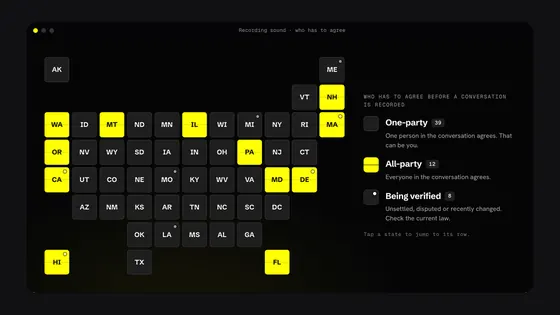
Recording video of public roads is generally allowed in the US. Sound is the difference: in all-party states, everyone in a conversation must agree before it's recorded. Dashivo records sound unless you turn off Settings › Dash cam › Record sound, so check your state. This isn't legal advice.
Can I record passengers or rideshare riders?
Yes, with care. Video of your car is generally fine, but sound needs everyone's consent in all-party states, so tell riders they're recorded (a sign or sticker helps) or turn off Settings › Dash cam › Record sound. To record the cabin, turn on Settings › Dash cam › Cameras to record › Front and rear, and check your rideshare platform's rules. This isn't legal advice.
Is a phone on the windshield allowed?
Usually, if it doesn't block your view. A few states name exact spots: California, for example, allows a 7-inch square in the lower corner farthest from you or a 5-inch square in the lower corner nearest you. Others ban anything that blocks your view, and most ban holding a phone while driving. The state table says where to mount in each state; the dash or console works everywhere.
Will my footage hold up as evidence?
It can help, but nobody can promise how insurers or courts will use it. Keep the original files, share copies, and don't edit them. The stamp shows the time, place and speed on every frame.
Can I use the Stopwatch on the street?
No. The Stopwatch is for closed courses only. Racing against a clock on public roads is a crime in many states, and footage of it can be used against you.
Is the speed-limit sign always right?
No. It comes from OpenStreetMap, a map kept by volunteers, and roads without a recorded limit show no sign. The signs on the road always come first. Turn it off in Settings › Navigation › Speed limit sign.
Where are the terms and privacy policy?
The app's terms of use and privacy policy, and the website privacy notice and terms.
No answers match that. Try another word, or ask us by email.
Still stuck?
- 01
Search every answer above: try a word like "heat", "PIN" or "USB".
- 02
Follow the setup guide: mounting, first launch and the settings that matter.
- 03
Write to [email protected] or use the contact form. We reply within two working days.
 Coming