For iPhone & Android
App
Clips & evidence
Named to the second, protected, easy to save and share.
Every recording Dashivo™ makes stays on your phone, by day, newest first. Play a clip, share it, or save it to Photos or the Gallery. Each file is named with the date, the time to the second and the camera, and every frame carries the stamp. Share any clip in a tap: to Messages, WhatsApp, YouTube, Google Drive or any app on your phone, as the original or a smaller copy.
Where your clips are
- Clips
- In the app, by day, newest first, with a filter for police stops. Tap one to play, share or save it.
- Photos
- On iPhone, Save to Photos adds a copy to your library. Dashivo can only add to Photos; it never sees what's in it.
- Files
- On iPhone, the videos are in the Files app under On My iPhone › Dashivo, ready to copy to a computer.
- Gallery
- On Android, clips also show in the Gallery's Dashivo album, unless you keep them inside Dashivo with the app lock.
- USB-C
- With Pro, an Android phone records straight to a USB-C flash drive or SSD. iPhone apps can't record to USB.
- The loop
- New driving replaces the oldest within the space you give Dashivo, 32 GB to start. Your own photos and apps are never touched.
A copy saved to Photos or the Gallery is out of the loop's reach. With the app lock you can keep clips inside Dashivo only: out of the Files app or the Gallery, and out of their backups.
Named to the second
- 2026-09-27_20-41-52_Front.mp4Body cam · front camera
- 2026-09-27_20-41-52_Rear.mp4Body cam · rear camera, same second
- 2026-09-27_18-12-07_Rear.mp4Dash cam
Rear is the phone's back camera, the one that faces the road in dash cam mode. In body cam mode the front and rear cameras record at once, each into its own file, side by side in the list. The time is the phone's own clock when the clip began, so clips from several phones line up too.
How it works
- 01
Drive with Dashivo on screen. Dash cam mode records continuously, in a loop, within the space you choose.
- 02
Tap Clips on the rail: every recording by day, newest first. One tap filters to your police stops.
- 03
Tap a clip to watch it, then Share it or Save to Photos (the Gallery on Android).
- 04
Need the files themselves? On iPhone they're in the Files app; on Android with Pro, record straight to a USB-C drive.
Honest about deletion
On the phone alone, whoever holds it can delete.
A clip that only lives on your phone is only as safe as the phone. The app lock helps: without your PIN, nobody can watch, share or delete clips inside Dashivo, and you can keep them out of the Files app and the Gallery. But anyone with your phone unlocked can still delete the app, and a phone that's taken or wiped takes its clips with it. A copy away from the phone is the answer.
- Copy the ones that matter to a computer
- Android · Pro: record to a USB-C drive
- Dashivo Cloud Coming soon
- Dashivo Hub Coming Soon
Where it stands
Works today
- Clips by day, with a police stop filter
- Play, share, save to Photos or the Gallery
- Files app on iPhone, every file named to the second
- The stamp on every frame
- USB-C drive recording on Android (Pro)
- App lock: keep clips inside Dashivo
Coming soon
- Dashivo Cloud: the clips that matter, end-to-end encrypted, for 30 or 60 days
- Police stop footage uploaded as the stop starts
Dashivo Hub Coming Soon
- Every clip copied to the Hub's own drive, offline, over its own Wi-Fi
- The 10 minutes before a stop locked on the Hub
Every frame,
stamped.
Dashivo burns the facts into the picture as it records: laid out like the HUD: REC with the quality and frame rate, the time to the second and the date, your speed and trip, G-force, the street and city, GPS coordinates and heading. It's part of the video, so it shows in any player and in every copy you share, upright or sideways. Choose which parts in Settings › Video › Stamp on the video.
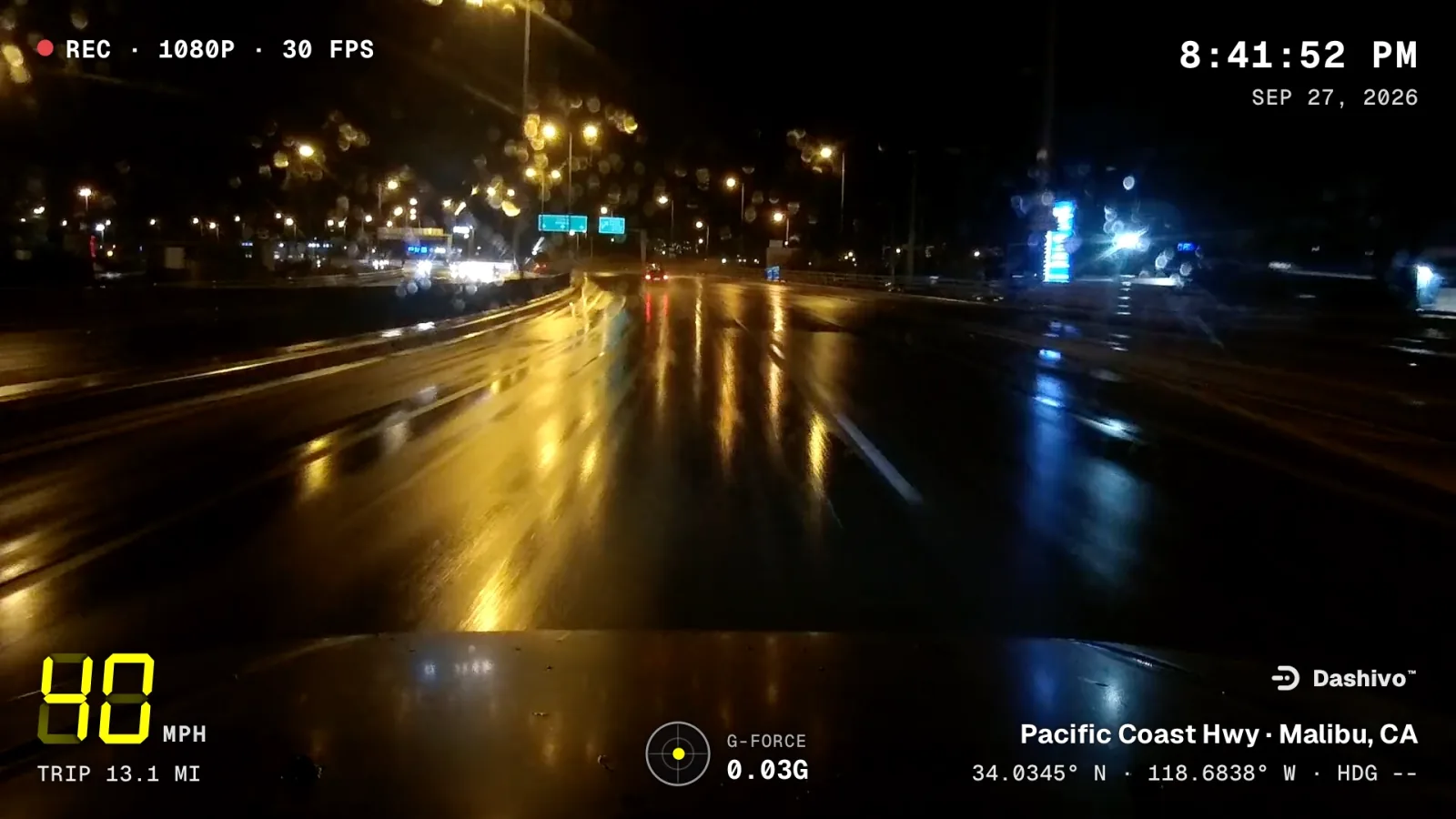
- REC, quality and frame rateTop left, like REC · 4K · 30 FPS; with two cameras, which one: REAR or FRONT.
- Time and dateTop right: the time to the second, from the clock that names the file.
- Speed and tripBottom left, from GPS, in mph or km/h. No GPS fix: it shows --.
- G-forceBottom centre: every bump, brake and swerve.
- Where you wereBottom right: the street and city, then the GPS coordinates and heading.
- The Dashivo markOn free recordings, clear of every reading. Pro lets you turn it off.
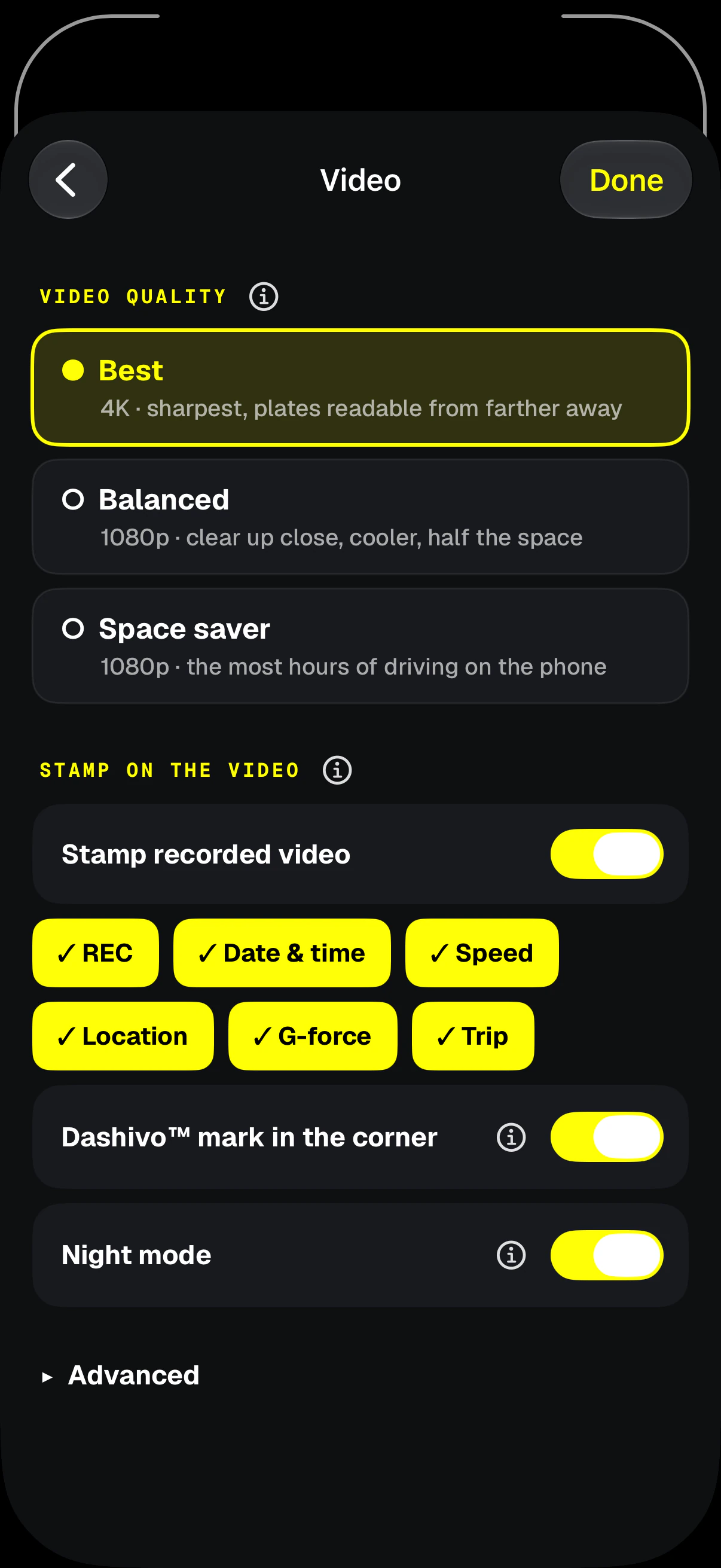
- QualityBest records 4K with Pro; Balanced and Space saver keep more hours.
- What's stampedREC, date and time, speed, location, G-force, trip: pick any.
- Stamp onBurned into the video itself, so it shows in any player and every copy.
- The markThe small Dashivo mark; Pro can turn it off.
Keep the original files as they came off the phone, share copies, and don't edit them. The stamp shows what the phone recorded, but nobody can promise how footage will be used: that's up to insurers, courts and the people you share it with. This isn't legal advice.
Police stops,
kept safe.
Tap POLICE and every camera records until you end it, with no time limit. It's saved behind the scenes every few seconds, so each part is safe within seconds, even if the phone is grabbed, knocked or switched off. The stop, and the 10 minutes before it, are kept safe from loop recording on your phone, and in Clips the stop is marked POLICE STOP.
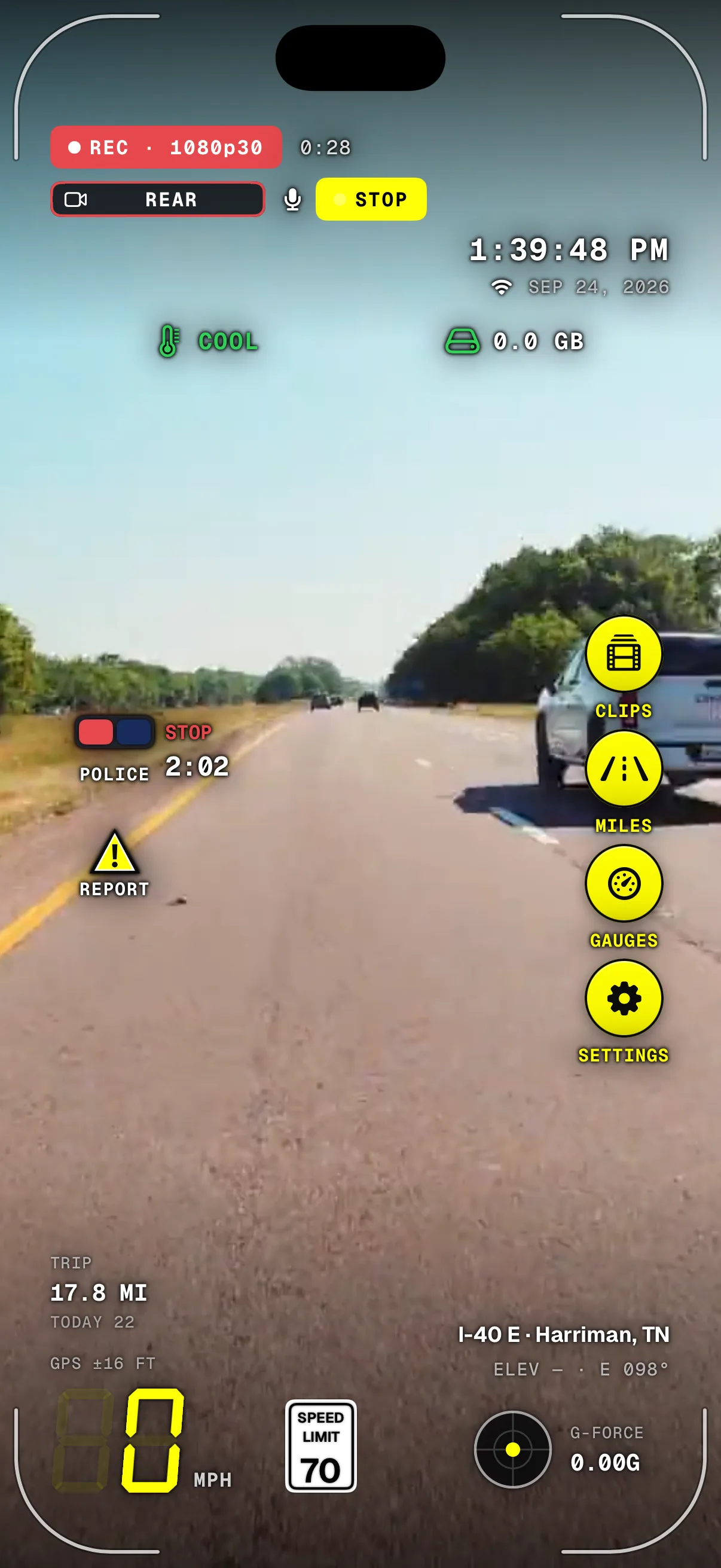
- REC carries onRecording never pauses for the stop.
- The stop's clockHow long the stop has run. Tap POLICE to end it.
- STOPEvery camera stays on until you end the stop, saved every few seconds.
- ClipsThe stop's clips are marked POLICE STOP, with a filter of their own.
On the phone alone, a phone that's taken or wiped takes its clips with it. Dashivo Cloud (Coming soon) uploads stop footage as the stop starts, and the Dashivo Hub (Coming Soon) gets a copy of every part and locks the 10 minutes before the stop.
More of the app
Download
Drive with a
witness.
Dashivo™ is free for iPhone and Android. Get the app, mount your phone, and your next drive is on the record.
Nothing new to buy · No account needed · Footage stays on your phone