For iPhone & Android
App
Resources · Setup guide
Set up, then drive.
Four steps from getting the app to your first drive: where the phone goes, what to allow, and the few settings worth a look.
You do it once. After that you plug in, check that Dashivo™ shows REC, and drive. Everything it does on the road happens on its own.
- 01Get the app
- iPhone: iOS 17 or later
- Android 10 or later
- Free, no account needed
- 02Mount the phone
- Low and central, seeing the road
- A sturdy mount
- Plugged in, out of the sun
- 03First launch
- Allow the camera and location
- Read the phone check
- Pick dash cam or body cam
- 04Your first drive
- Plug in
- Check REC is showing
- Hands off the phone
Mounted, plugged in, REC showing. That's the whole routine.
The settings that matterStep 1 of 401
Get the
app.
Dashivo runs on the phone you already have. There's nothing else to buy.
iPhone
iOS 17+iOS 17 or later. Front and rear cameras at once (body cam, or dash cam with Pro) need an iPhone XS or XR or newer.
Android
10+Android 10 or later. Whether both cameras can record at once depends on the phone. The app checks yours.
In the App Store and Google Play soon. The badges on the download page become links the day each listing goes live.
Download page- Free to download and record with
- No account needed to record
- Your footage stays on your phone
Step 2 of 402
Mount the
phone.
Where it sees the road without blocking your view of it. Set it up once, parked.
- Keep clearThe windshield in front of you is your view of the road. Never mount the phone there.
- Or up behind the mirrorHigh on the glass, hidden behind the rear-view mirror.
- Sees the roadThe camera looks straight ahead through the glass, not at the dash or the hood.
- Low, in the middleThe best spot: on the glass or the dash, as close to the middle as you can.
- Cable along the edgeTucked along the edge of the dash, clear of the wheel, down to USB power.
- A sturdy mountOne that holds the phone still over bumps. A wobbly phone makes wobbly video.
- Upright or sidewaysBoth work. Pick whichever fits your car and your mount.
- Keep it plugged inRecording video all trip long uses more power than most phones can run on battery alone.
- Out of direct sunWhen you can, near an air vent. Dashivo keeps full quality unless the phone gives its highest heat warning.
- Check your state's rulesSome states limit what can go on the windshield, and where. Recording laws
- Before you driveSet it up parked. Many states have hands-free laws for phones on the road.
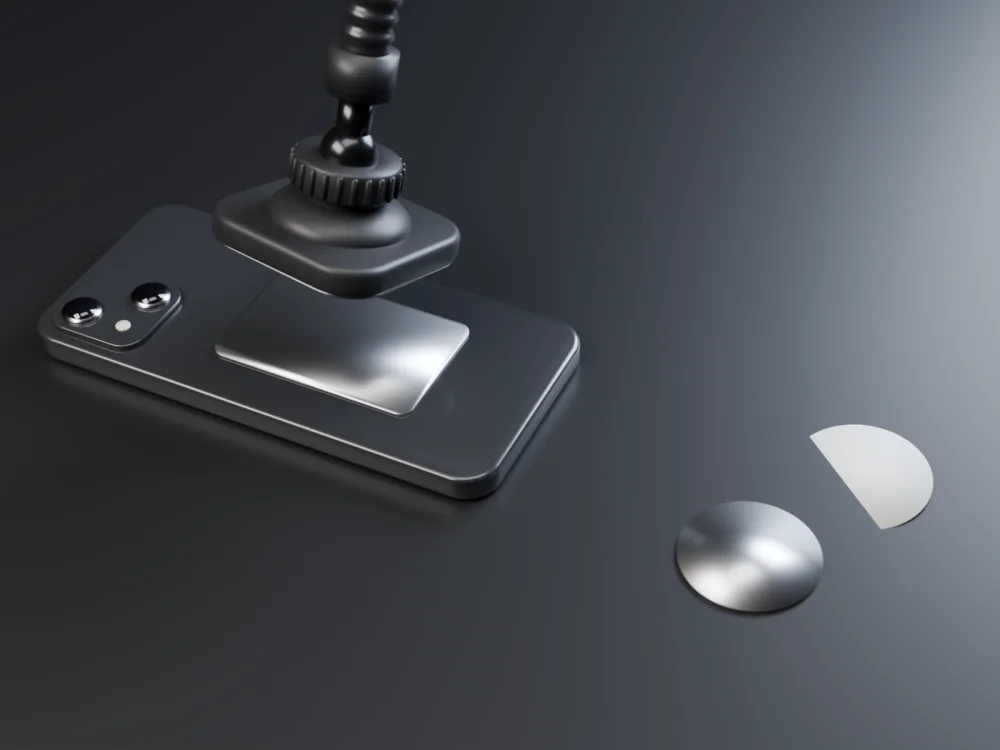
A magnetic mount you can aim
A magnetic mount with a bendable arm is the easiest: the phone snaps on and off, the arm bends, and the head tilts, swivels and turns. Recording the cabin too (Dash cam with Pro)? Put it in the middle of the windshield, just below the mirror, where your state allows, so the front camera sees over the seats to both rear doors. The dash or the console works too.
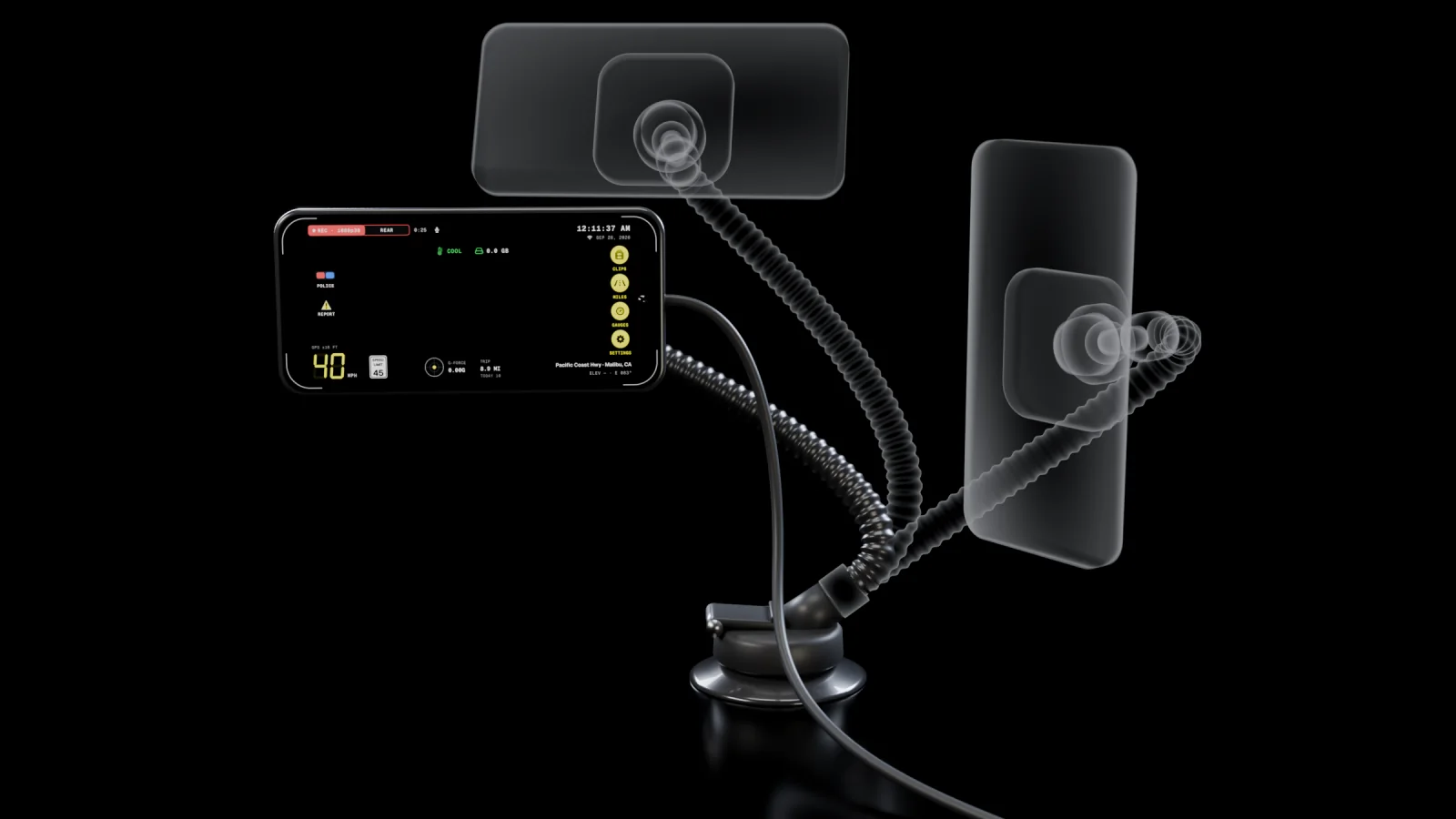
- BendThe arm holds any curve, so the phone sits just where you want it.
- Tilt and swivelThe ball joint aims the rear camera at the road and the front camera at both rear doors.
- RotateSideways or upright. The HUD turns with the phone.
Wearing it for body cam
Use a chest harness, a strap or a vest pocket, with the camera clear. Worn on your chest, the camera facing you sees only your shirt, so pick the one facing out in Settings › Body cam, or record both.
More about body camStep 3 of 403
First
launch.
Open the app, allow what it needs, read what it says about your phone, and pick a mode.
What Dashivo asks for
You can change these any time in your phone's settings.
- CameraAllow
To record. Nothing works without it.
- LocationAllow
For your speed, the stamp, the speed-limit sign and your miles. None of it is sent to us.
- MicrophoneAllow
For sound with your video. On unless you turn it off; you can record video only.
- NotificationsIf it asks
If the app asks: so it can tell you when recording stops.
- Photos or GalleryWhen you save
Only when you save a clip there yourself.
The phone check
Dashivo looks at your phone and tells you plainly what its cameras can do, with the reason for each.
- NightThe main camera's sensor and lens
- 4KWhether it can record 4K
- Body camFront and rear cameras at once
- Heat & ageHow old the phone is, and its memory
GreatGoodLimited
Not great at night? It names the phones we recommend. Which phones work
Pick a mode
Settings › Mode
Dash cam
The road through the windshield, with the rear camera. With Pro, the cabin too, on the front camera. With sound, unless you turn it off.
Body cam
On foot or on a bike: front and rear cameras at once, free, with sound you can turn off.
Switch any time. The stamp on the video is the same in both. Dash cam · Body cam
The settings
that matter.
The defaults work, so you can skip this and drive. These are the ones worth checking once, with the names and choices you'll see in the app.
Yellow marks what the app starts with.
VideoSettings › Video
In Settings › Dash cam. Rear films the road ahead. Front and rear (Pro) adds the cabin and your riders at the same time, with sound, each camera into its own 1080p video. Road and cabin
Free records Full HD, so Balanced is where you start. With Pro, Best records 4K on phones that can: plates stay readable from farther away, and it uses about 7 GB an hour and runs the phone warmest. Balanced uses about half the space and runs cooler; Space saver keeps the most hours.
Normal matches what you see through the windshield. Extra wide uses the phone's ultra-wide lens, where it has one, to also catch the lanes and sidewalks beside you, but faraway details like plates look smaller.
Recording is continuous. Behind the scenes it's saved in segments, so one damaged file never costs you a whole trip, and nothing is lost between them.
Sound is recorded with every video: dash cam, body cam and police stops. Turn it off to record video only. Some states require everyone in a conversation to agree before it's recorded. Recording laws
Advanced also has resolution, frames per second, detail and file type (HEVC or H.264). The three presets set them for you.
StorageSettings › Storage
How much of the phone Dashivo may fill with video, in steps of 4 GB. Settings shows about how many hours of driving that holds at your quality. Your own photos and apps are never touched.
Continuous loop recording, like every dash cam: new driving replaces the oldest. Turn it off and Dashivo keeps 2 GB free instead.
On iPhone your videos are in the Files app, under On My iPhone › Dashivo, unless you keep them inside Dashivo with the app lock.
Stamp on the videoSettings › Video
Burns a small band into the bottom of every recorded video. It's part of the video itself, so it shows in any player and when you share a clip. The HUD on screen is separate and never recorded.
Pick which ones are burned in. All six are on to start.
Free recordings carry a small Dashivo mark just above the stamp. Pro lets you turn it off.
The stamp is the same in dash cam and body cam mode.
Night modeSettings › Video
When the picture gets dark, Dashivo adjusts the camera for night: Extra wide slides over to the main lens, which takes in several times more light, and the phone brightens the picture where it can. NIGHT shows next to REC while it's on. Off keeps the same camera settings day and night.
It judges the dark from the camera itself, and switches back on its own in daylight.
When I tap POLICESettings › Police stop
On: tapping POLICE shows a short window where you choose what happens, then Start. Off: POLICE starts right away with your choices, which is fastest when you're being pulled over.
The red-and-blue button on the screen, one tap away in both modes.
For the Dashivo Hub, on preorder now and shipping in Q4 2026. You don't need it: the app works on its own.
A stop records continuously until you end it, and it's saved every few seconds. The stop, and the 10 minutes before it, are kept safe from loop recording on your phone. Police stop
App lockSettings › App lock
A lock just for Dashivo, on top of your phone's own, so someone who gets into your phone still can't watch, share or delete your recordings. The PIN is Dashivo's own, not your phone's passcode. On Android it's your fingerprint or face.
How long Dashivo can be off the screen before it asks again. It never asks while it's on screen, so it never interrupts you while driving.
With a PIN set, Face ID and fingerprints are turned off during a police stop and for 30 minutes after it; only your PIN opens Dashivo. Laws on unlocking phones differ by state. This isn't legal advice.
Wrong PINs only make you wait. They never delete anything. Privacy & app lock
Units & positionSettings › On screen
For your speed, distances and your miles. Speeds past 99 read in full.
How the time reads on screen.
Street & city is looked up by the phone from the GPS position, using data. Coordinates show exact latitude and longitude, which is what's saved with every clip either way.
Body camSettings › Body cam
Front and rear record at the same time, free, each into its own 1080p video. Worn on your chest, the camera facing you sees only your shirt, so pick the one facing out.
For a pocket, a strap or a vest. Recording carries on, the screen turns black and dim with a big REC, and every touch is ignored until you hold the unlock button for a second and a half. When recording starts, Dashivo can ask, turn it on by itself, or never ask.
Sound is set once for every mode, in Video › Record sound. On iPhone, don't press the side button while you record: Apple stops the camera while the iPhone is locked. Screen off turns the screen black instead.
One tap on
the gear.
Settings opens from the gear at the top of the screen. Its Video page holds the quality, the stamp, night mode and sound.
Settings
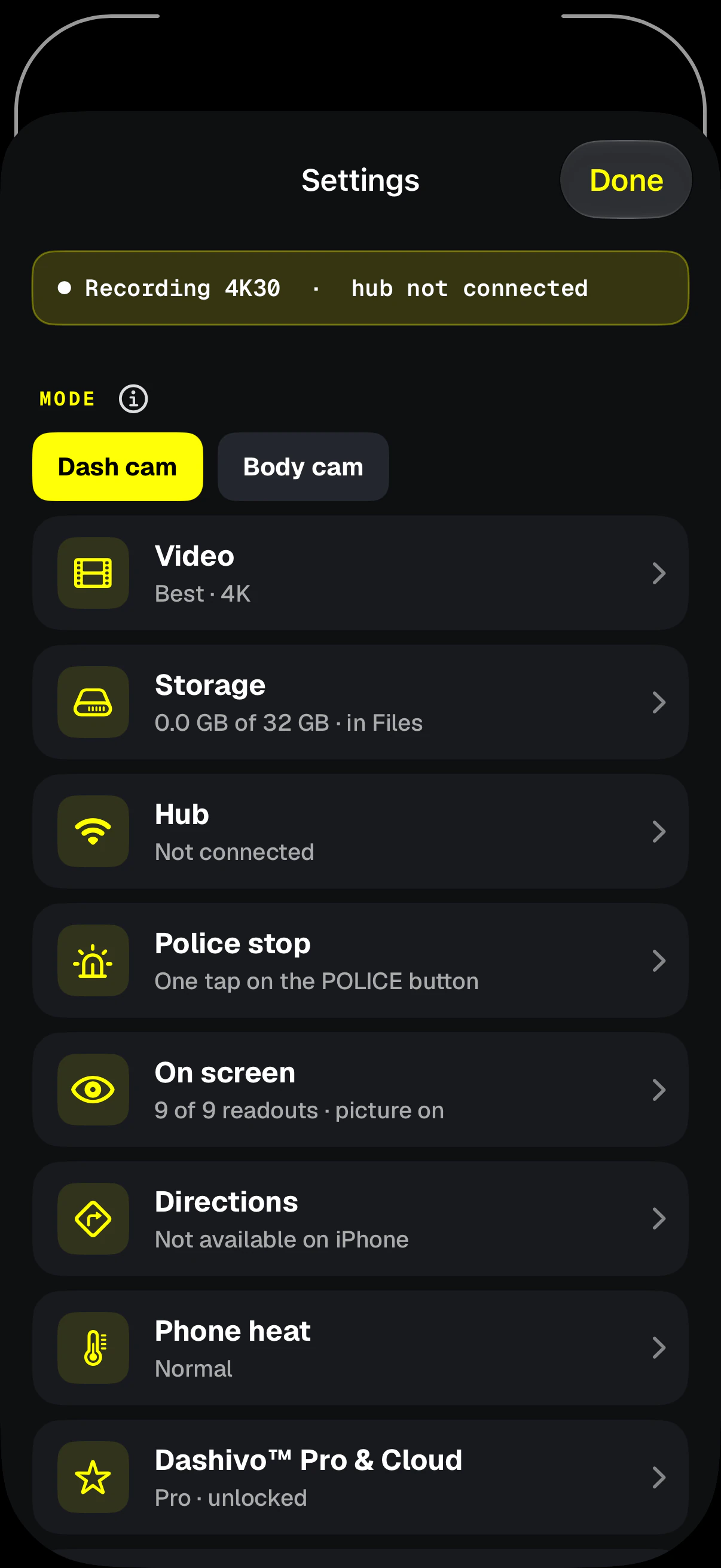
- ModeDash cam or body cam. Switch any time.
- VideoQuality, lens, the stamp, night mode and sound.
- StorageHow much space Dashivo may fill: 32 GB to start.
- Police stopWhat one tap on POLICE does.
- Phone heatThe phone's heat level, and what helps it cool.
Settings › Video
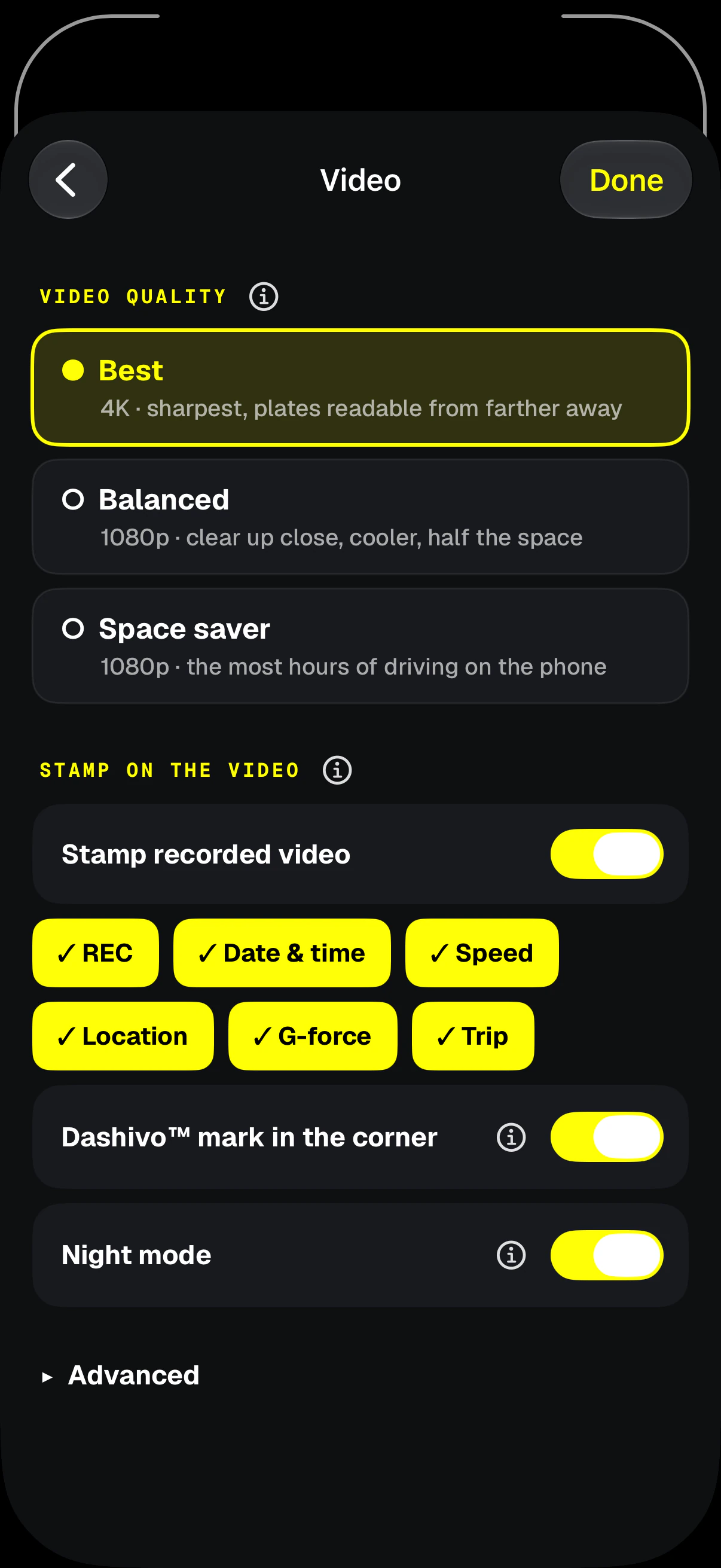
- Video qualityBest (4K with Pro), Balanced or Space saver.
- The stampTap a readout to leave it off the video.
- Dashivo markOn free recordings. Pro can turn it off.
- Night modeOn by default: the main lens after dark.
- AdvancedResolution, frames, detail, file type and clip length.
Real screens from the iPhone app. What you see in Settings depends on your phone and your plan.
Step 4 of 404
Your first
drive.
The same three things before every drive. Then leave the phone alone.
- 01
Plug it in. The car's USB power or a charger, every time.
- 02
Check REC is showing. Glance at the screen before you pull away.
- 03
Hands off. Don't handle the phone while you drive. Recording, the stamp and your miles all carry on by themselves.
- If
You're pulled over: tap POLICE as you pull over, then leave the phone alone and follow the officer's instructions.
On iPhone, keep Dashivo on screen
Apple only lets apps use the camera while they're open on screen. Switch apps or lock the iPhone and recording stops until Dashivo is back, and Dashivo warns you when that happens.
- Guided AccessSettings › Accessibility on the iPhone can keep Dashivo on screen.
- Screen offTurns Dashivo's own screen dark while it keeps recording, which keeps the phone cooler.
- Side buttonDon't press it while you record: the iPhone locks and the camera stops.
After the drive, your recordings are in Clips, by day, to play, share or save. Clips
Download
Drive with a
witness.
Dashivo™ is free for iPhone and Android. Get the app, mount your phone, and your next drive is on the record.
Nothing new to buy · No account needed · Footage stays on your phone