




Sign in to which Dashivo?
Your own phones, or your company's fleet. Each has its own account.
New to Dashivo Pro? Talk to us and we'll set up your company.
Mileage at tax time
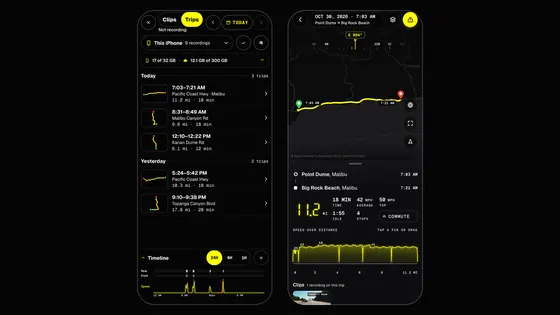
Every trip lands on a map and in your mileage log while you drive. Export it as a PDF or CSV for tax time.
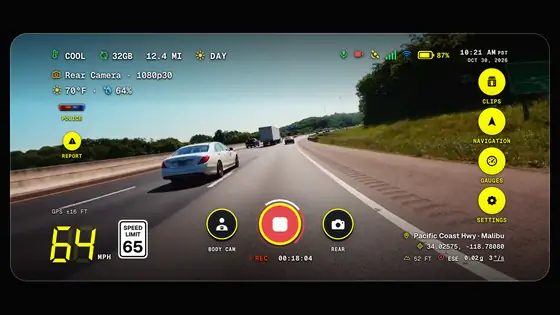
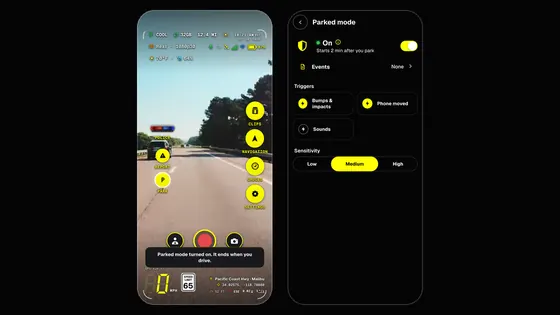
Illustrated frameNot real footage
The situation
You drive for work: client visits, supplies, errands for the business. At tax time your accountant asks for your business miles.
Step by step
All year Trips log themselves
While Dashivo™ records, each trip is logged; a trip ends after five minutes parked.
Every day Miles on the HUD
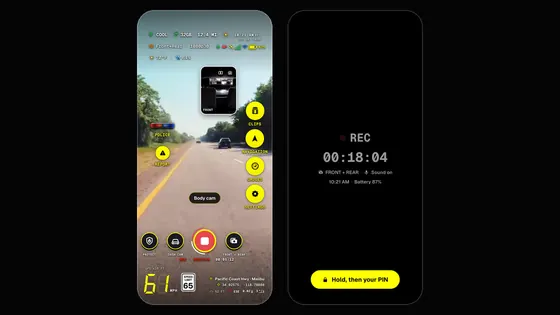
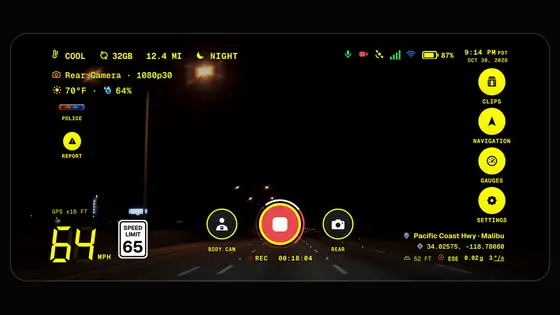
The HUD shows this trip's miles at the top as you drive, and the stamp carries them on every frame.
Any time The Miles screen
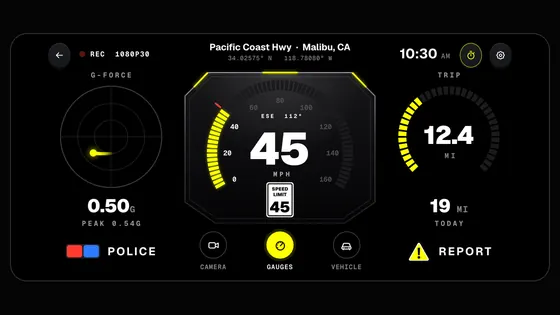
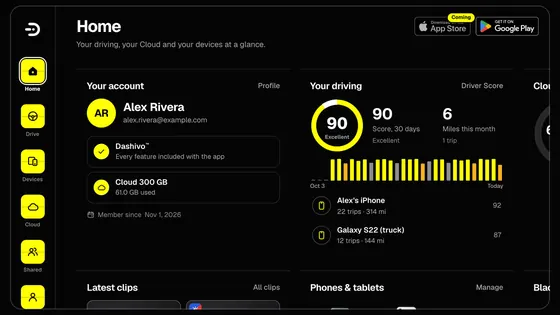
Open Settings › Driving & miles for every trip on a map, today, the week, the month and a 30 day chart.
At tax time Export for tax time
Tag each trip business, commute or personal, then export the IRS log as a PDF or CSV.
With the Black Box The full log
With Black Box OS (Beta), your log is kept on your Black Box too, and every edit is saved as a new entry.
Drive as usual. The miles add up on their own.
What you walk away with
- Your trips and daily miles, measured by GPS.
- A 30 day chart, the week, the month and the year at a glance.
Good to know
Miles come from GPS as a record of your driving; keep what your accountant asks for. Export the log as a PDF or CSV from the app. This isn't tax advice.
 Coming