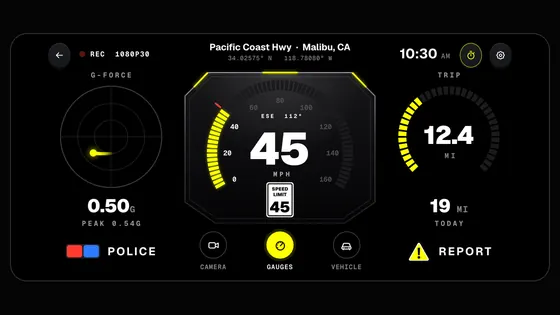
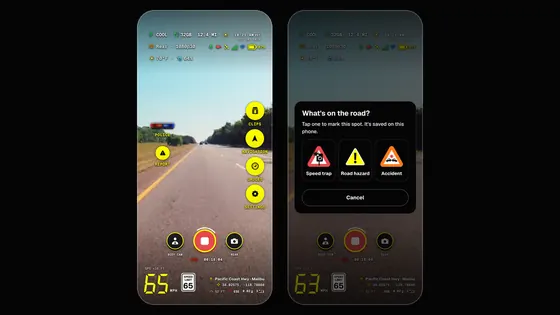
Sign in to which Dashivo?
Your own phones, or your company's fleet. Each has its own account.
New to Dashivo Pro? Talk to us and we'll set up your company.
Police stop recording on your phone
One tap: records until you end it, saved every few seconds.
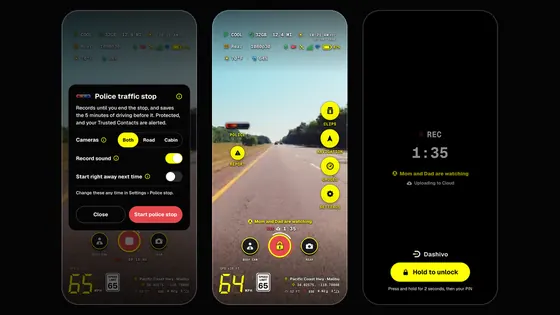
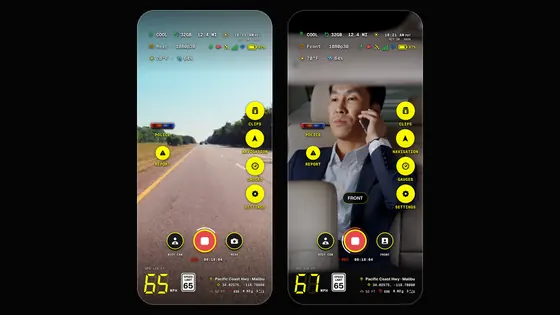
Tap POLICE as you pull over, then leave the phone alone. Dashivo™ records on every camera until you end the stop, with no time limit, and saves it behind the scenes every few seconds, so each part is safe even if the phone is grabbed, knocked or switched off. It documents what happens; it never argues for you or accuses anyone.
- Records until you end itNo time limit. When it's over, tap POLICE and hold to end the stop.
- Saved every few secondsIn small pieces behind the scenes, each one finished and safe within seconds.
- Kept safe from the loopThe stop, and the driving just before it, are kept safe from loop recording on your phone.
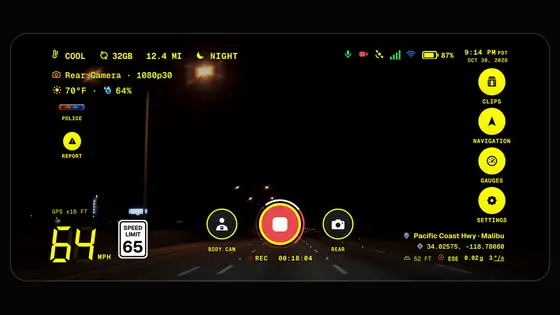
- Both camerasFRONT + REAR: the road ahead and the cabin, with sound. Or record one camera.
- Flip the viewTap the small picture to switch which camera fills the screen; both keep recording.
- POLICEThe light bar flashes while the stop runs. Tap it for the stop's card: lock the screen, or hold to end the stop.
- Who's watchingWith Dashivo Cloud, the Trusted Contacts you allow can watch live, and you see who's watching.
- The stop's clockREC, the upload mark and how long the stop has run.
- LockedA padlock on the record button: the stop records until you end it.
- Stopped, stamped0 mph, the time and the place, burned into every frame, with POLICE STOP.
Dashivo's camera screen during a police stop, with sample data; the camera pictures are licensed sample footage.
When you tap POLICE
- 1 tap
- The red-and-blue POLICE button, on the camera screen and on the Dashboard.
- No limit
- It records until you end it: tap POLICE, then hold to end the stop, or enter your app PIN if you've set one. What was recorded during the stop stays locked.
- Every few seconds
- Saved behind the scenes in small pieces, so each part is safe within seconds, even if the phone is grabbed, knocked or switched off.
- Kept safe
- The stop, and the driving before it, are kept safe from loop recording on your phone: on iPhone the 5 minutes before, or 10 if you choose in Settings › Police stop; on Android, 10. With the app lock on, nobody without your PIN can watch, share or delete them.
- Both modes
- Dash cam or body cam. One camera with sound, or front and rear at once.
- On the stamp
- POLICE STOP is burned into every frame of the stop, with the time, the place and your speed.
The choice window, on or off
- A short window first
With Ask me first on, tapping POLICE shows a short window: the cameras, sound, and whether to start right away next time. Then Start police stop.
Settings › Police stop · the default - Straight to recording
With Ask me first off, POLICE starts at once with the choices you've already set. Fastest when you're being pulled over.
Settings › Police stop
If you're pulled over
- 01
Pull over safely and tap POLICE as you do. Then leave the phone alone in its mount.
- 02
Keep your hands where the officer can see them, and follow their instructions.
- 03
Let Dashivo document what happens. It doesn't argue for you or accuse anyone.
- 04
When it's over, tap POLICE and hold to end the stop. Everything recorded during the stop stays locked.
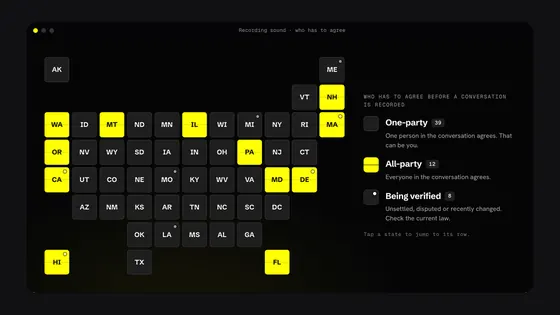
This isn't legal advice. In many places you may record officers doing their job in public, but the rules differ by state, and sound is treated differently from video. Read the recording laws overview.
If I'm arrested
- Set it up
- With Dashivo Cloud, pick the people you trust in Settings › Trusted Contacts, and a check-in time from 15 minutes to 8 hours.
- Check in
- Starting a police stop starts the timer. Tap “I'm OK, check in” when it's over, with your app PIN. Face ID and fingerprints are off during a stop and for 30 minutes after; on the web, check-in needs a code we email you.
- Not back in time
- Your chosen contacts get the stop's footage and where it happened, locked on your phone first. Or tap Send now.
- Alerts
- “Alert my contacts as soon as I press POLICE” is on by default, and they get “(your name) is OK” when you check in. If your phone stops responding for 5 minutes during a stop, they get an alert.
- Emergency PIN
- Optional. It works like your app PIN, and your Trusted Contacts also get the release at once, with a note that you entered your emergency PIN.
- Screen cover
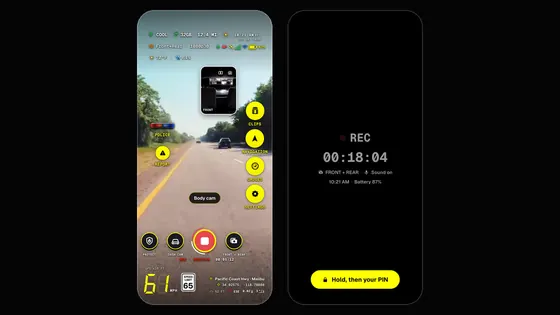
- Once you have an app PIN, on by default during a stop: a black, dimmed screen with REC and how long the stop has run, while recording continues. Hold for 2 seconds, then your PIN, to open it.
It doesn't contact the police, a lawyer or anyone else, it isn't an emergency service, and it needs a connection to reach your Trusted Contacts. Don't rely on it alone.
Where it stands
Works today
- One-tap police stop on iPhone and Android, in dash cam and body cam mode
- Recording until you end it, saved every few seconds
- The stop and the driving before it kept safe from loop recording on the phone
- App lock: only your PIN during a stop and for 30 minutes after
With Dashivo Cloud
- Stop footage uploads as the stop goes, on any connection, locked on your phone first
- If I'm arrested: your stop's footage and place to the Trusted Contacts you choose, if you don't check in
Black Box OS (Beta)
- A copy of each piece on the Black Box as it's saved
- The drive before the stop locked on the Black Box
Saved while it
happens.
The recording is saved in small pieces, each one finished within seconds, and there's no time limit: it runs until you end the stop. A copy away from the phone is what makes it hard to lose.
On the phone alone, a phone that's taken or wiped takes its clips with it. Save clips to Photos or the Gallery, record to a USB-C drive (Android), keep an encrypted copy in Dashivo Cloud, or, once Black Box OS is out, on your own Black Box.
Face ID off.
Your PIN only.
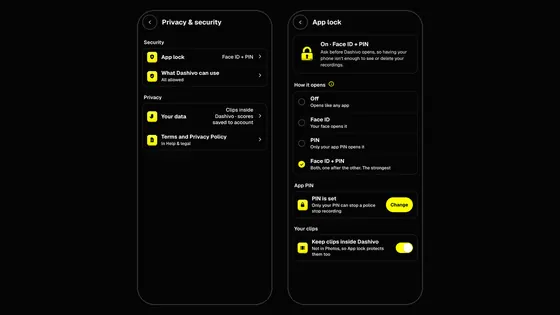
With the app lock on, you can have Dashivo ask for its own PIN, never Face ID or a fingerprint, during a police stop and for 30 minutes after it. Dashivo locks as soon as it leaves the screen; while it's on screen and open, it stays open.
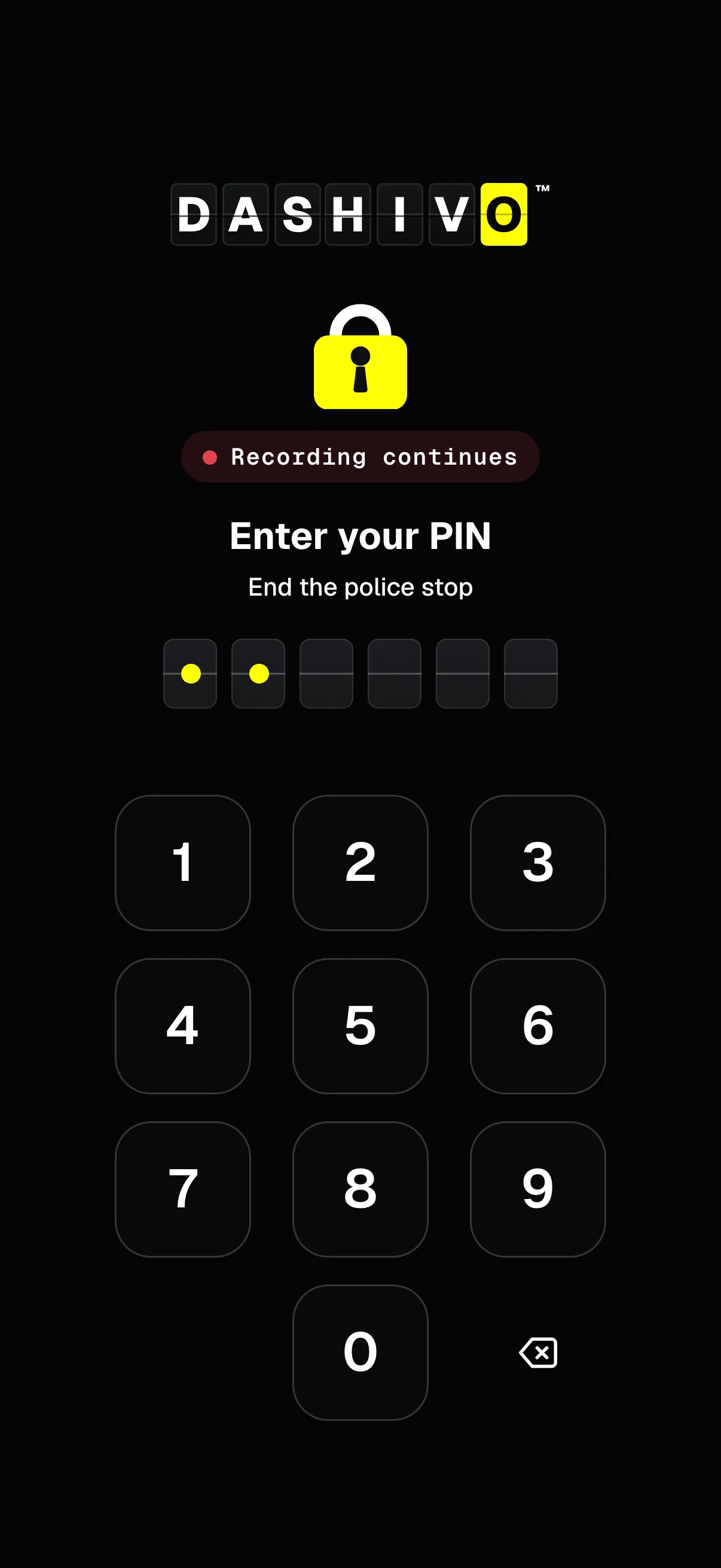
- Still recordingThe lock sits over the stop; recording carries on behind it.
- Only the PINEnding the stop takes Dashivo's PIN, never Face ID or a fingerprint.
- Dashivo's own PINSix digits or more, or letters and numbers, just for Dashivo. Not your phone's passcode.
- No wipesWrong PINs only make you wait; nothing is ever erased, because the recordings are evidence.
Laws on unlocking phones differ by state and country. This isn't legal advice.
 Coming