Sign in to which Dashivo?
Your own phones, or your company's fleet. Each has its own account.
New to Dashivo Pro? Talk to us and we'll set up your company.
Dashboard & Stopwatch
Supercar gauges and 0–60 timing, included.
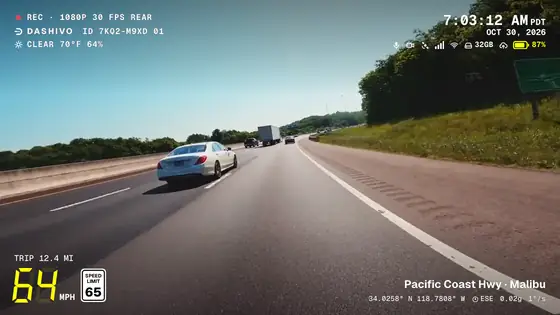
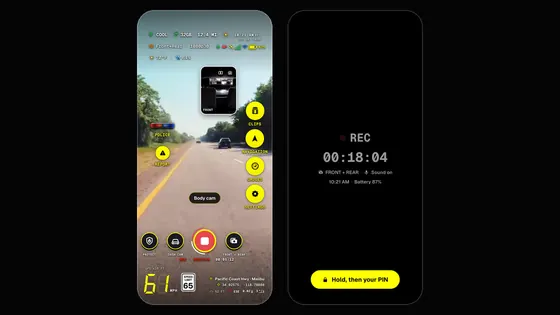
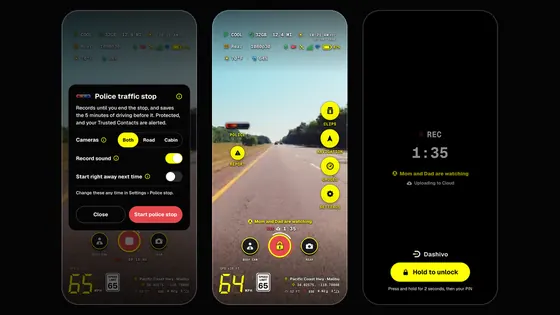
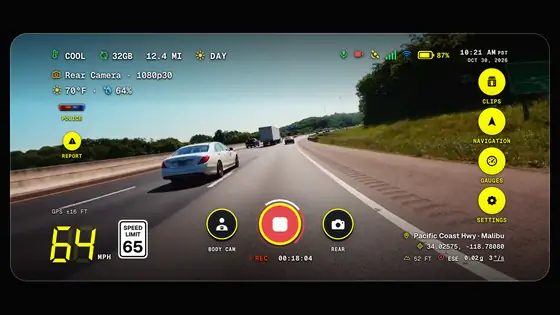
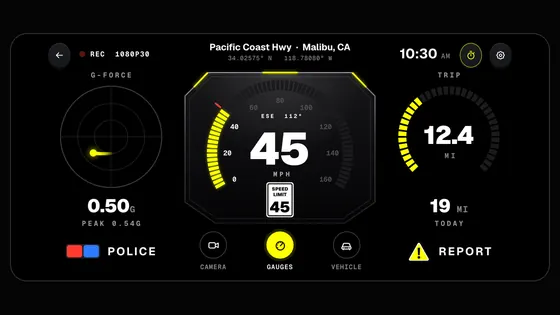
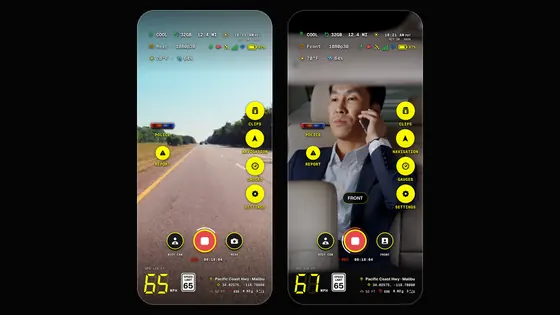
Turn the screen into an instrument cluster: a big speed dial with the posted limit, G-force with its peak, this trip and today, where you are, and big POLICE and REPORT buttons, with Camera, Gauges and Vehicle along the bottom. The Stopwatch times 0–60, braking and the quarter mile on closed courses, and starts itself on the launch. Dashivo™ keeps recording exactly the same underneath.
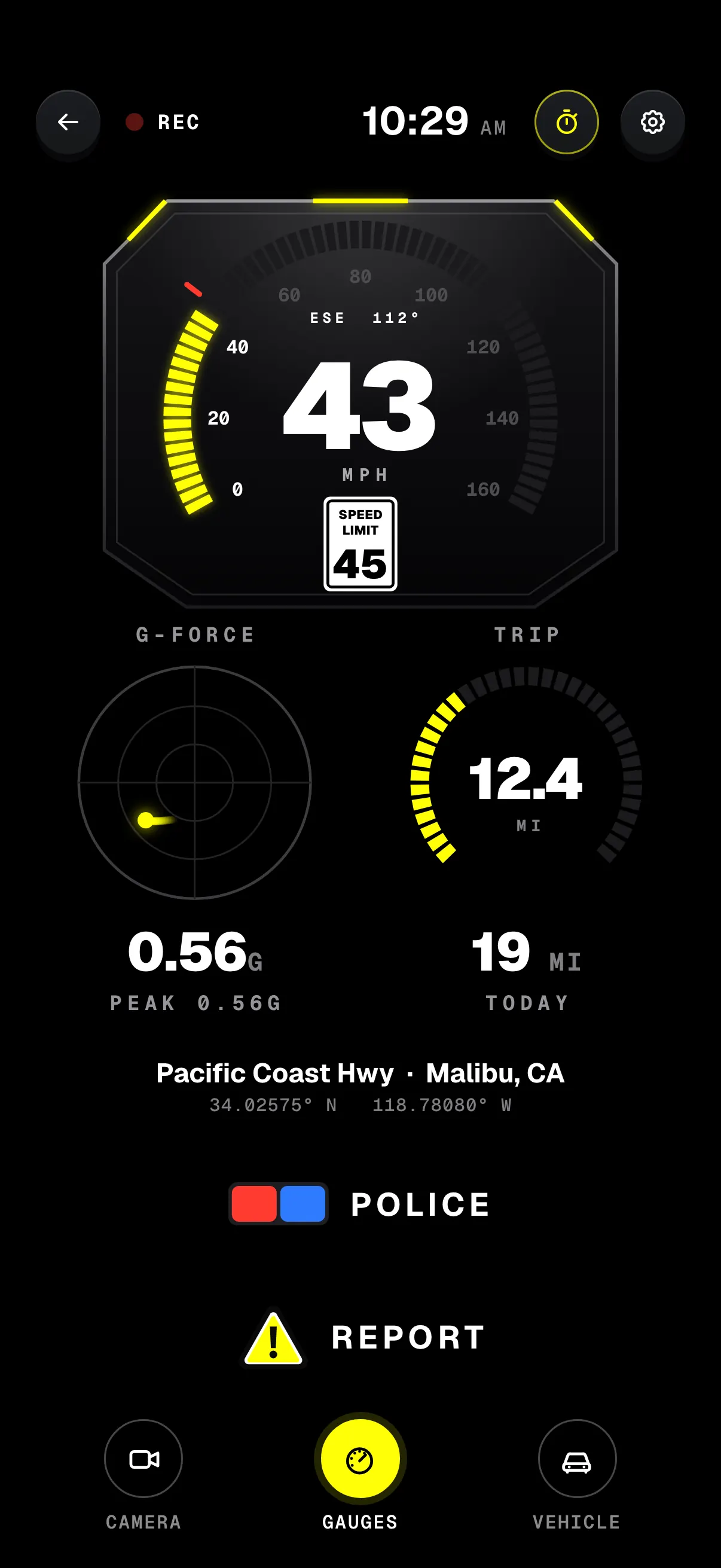
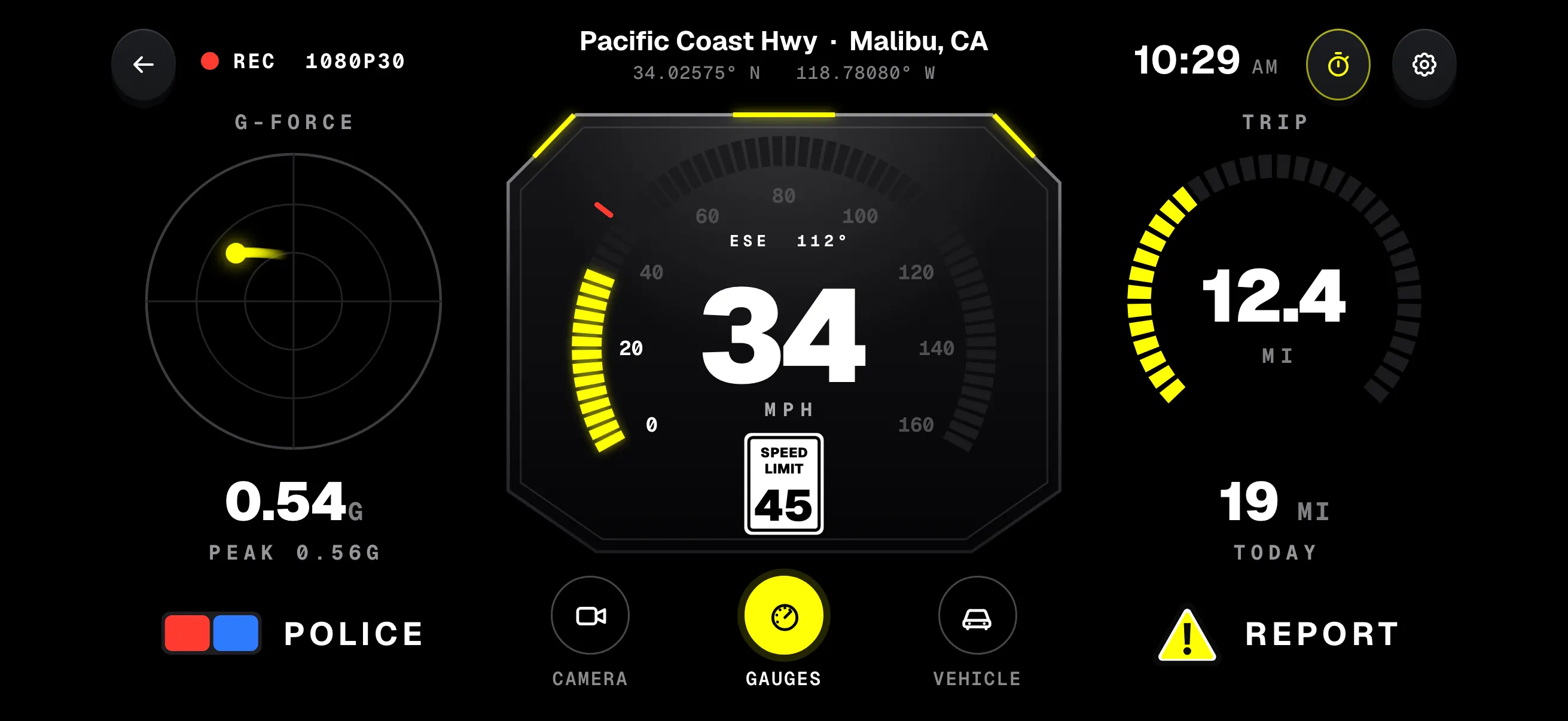
- Speed dialLit to your speed, with the heading above it; red past the limit plus 5 mph.
- Posted limitThe limit for your road, right under your speed.
- G-forceA live dot, the reading and the peak of the drive.
- POLICEBig enough to hit without looking twice.
- Camera, Gauges, VehicleSwitch screens in a tap; recording carries on.
- StopwatchOne tap opens the Stopwatch.
- Trip & todayThe miles this trip on a dial, and today's under it.
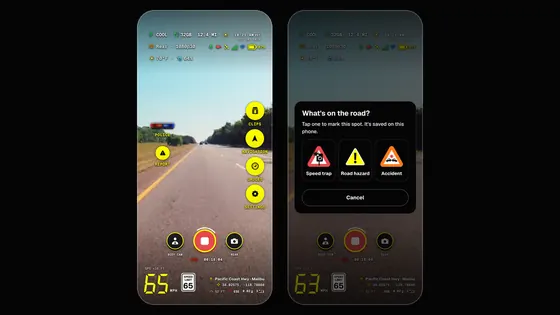
- REPORTA speed trap, a hazard or an accident, marked in one tap.
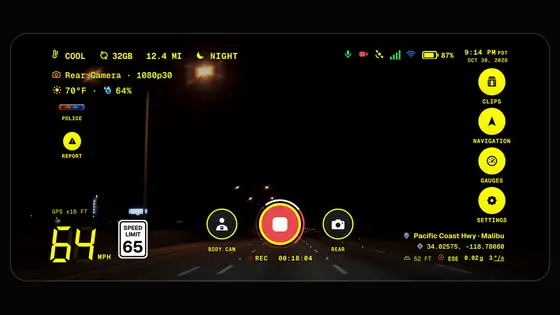
Dashivo 1.3 on iPhone on a simulated drive, upright and sideways.
What's on the Dashboard
- Speed
- A big dial lit to your speed, with the heading above and the posted limit below. Three digits past 99.
- G-force
- A dial with a moving dot, the reading and the peak of the drive.
- Trip & today
- The miles this trip on a dial, with today's under it.
- Where
- The street and city, under the dials, or across the top when sideways.
- POLICE & REPORT
- Big buttons, for one tap without hunting for them.
- Vehicle
- Your car's own gauges, from a Black Box with Black Box OS (Beta) and an OBD-II reader. Black Box OS comes with Dashivo Cloud.
- Recording
- Carries on exactly the same underneath, with the stamp on every frame.
Closed courses only
Use the Stopwatch only on a closed course or a racetrack where timed runs are allowed, and obey every speed limit and traffic law. Racing against a clock on a public road is a crime in many states. The app asks you to agree to this once, before your first run.
Times are burned into your footage, and footage of a timed run can be used as evidence against you.
Times are estimates from the phone's GPS and motion sensors, not certified.
How it works
- 01
Tap GAUGES on the HUD, or pick Dashboard gauges in Settings. Recording carries on exactly the same.
- 02
Tap the stopwatch at the top to open the Stopwatch, and agree once that it's for closed courses only.
- 03
Pick a run and press START, or AUTO. On the course, the clock starts itself on the launch.
- 04
Read the result, then GO AGAIN or go back to the Stopwatch. The run and the time are stamped on the video.
Where it stands
Works today
- Dashboard gauges, upright and sideways
- The Stopwatch: seven runs in mph or km/h, with AUTO
- The run and its result on the stamp
Also in the $9.99 app
- 4K recording on phones that can
- Front and rear cameras at once
- A small Dashivo logo you can turn off
- On Android, recording to a USB-C drive
0–60,
timed.
Pick a run from the road signs, press START and drive the course. Dashivo arms once you've stopped and starts the clock the instant the car moves: the speed, the time and the distance run live, then the result.
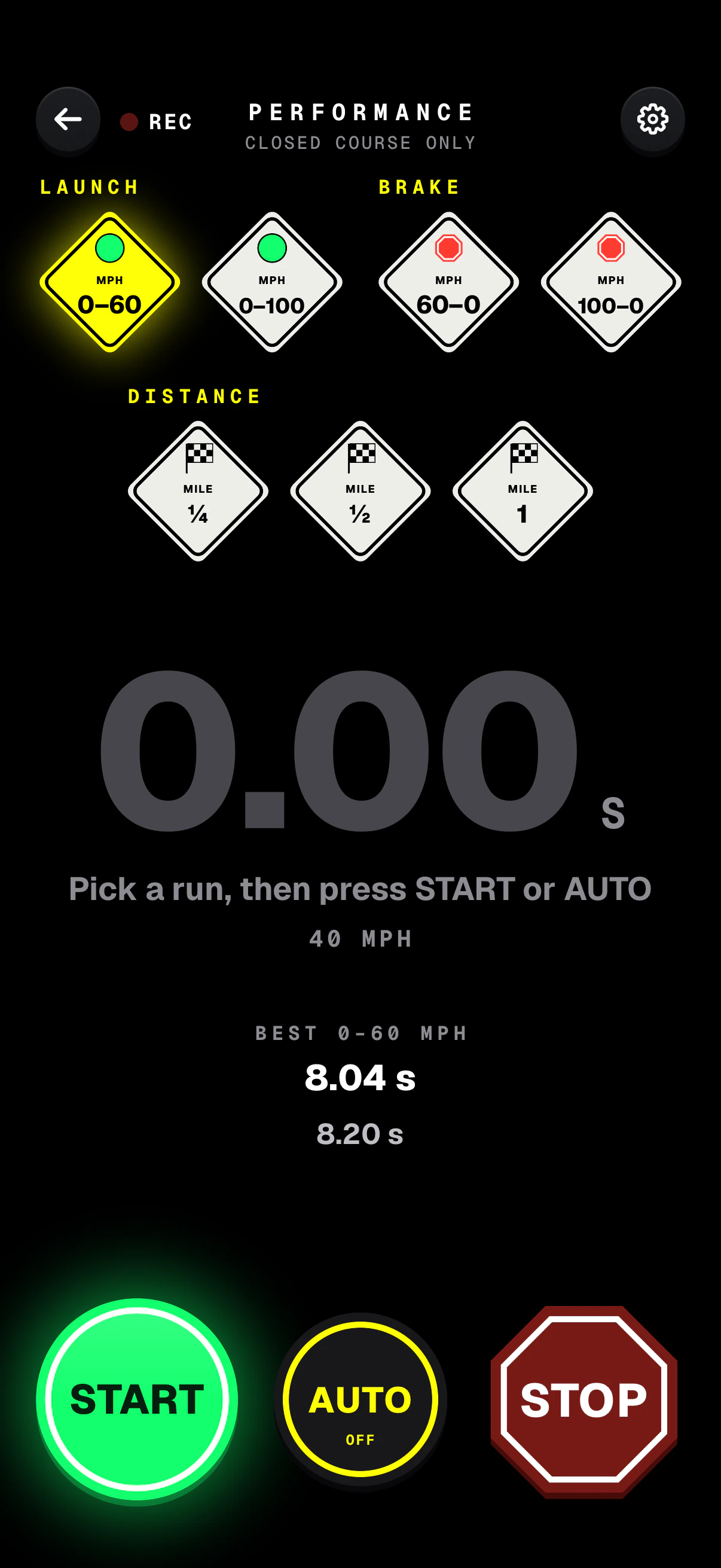
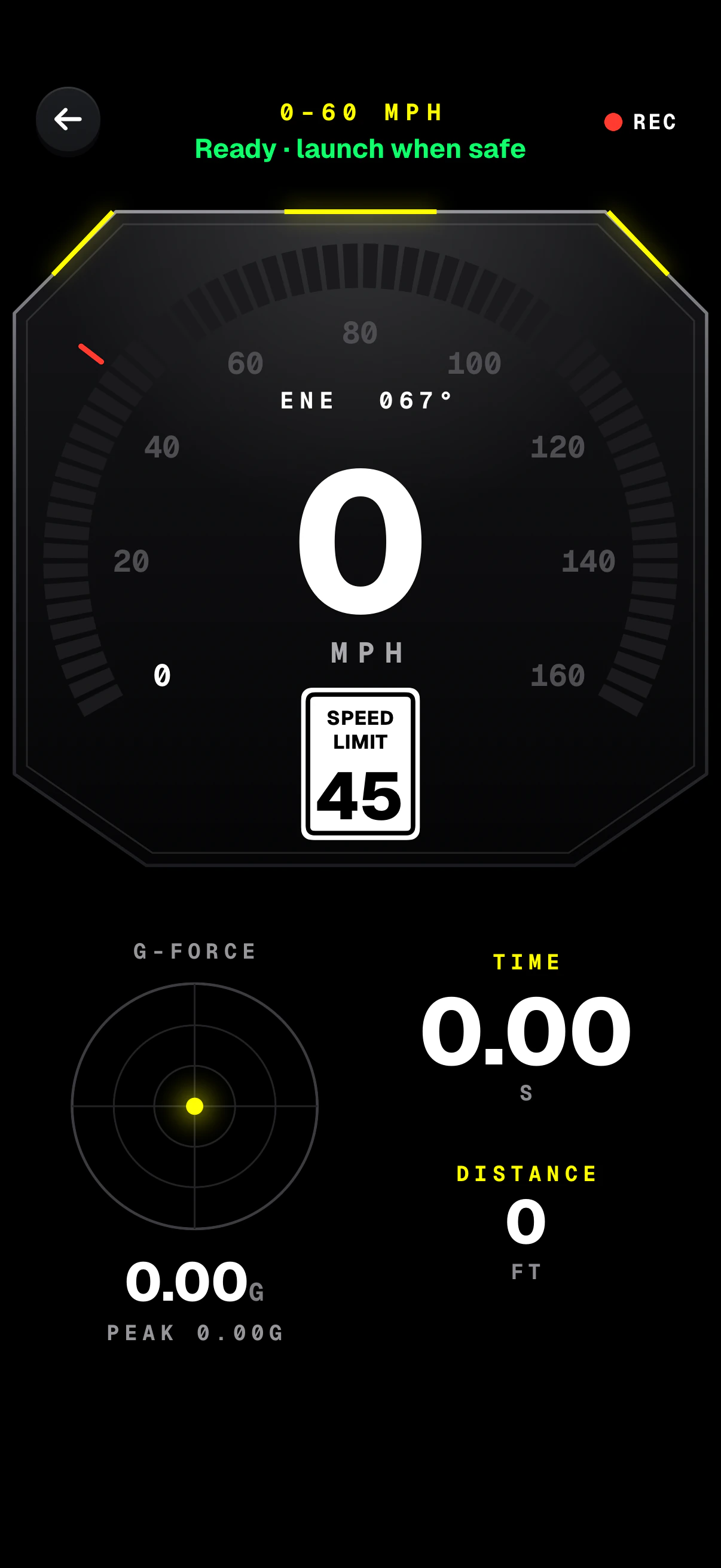
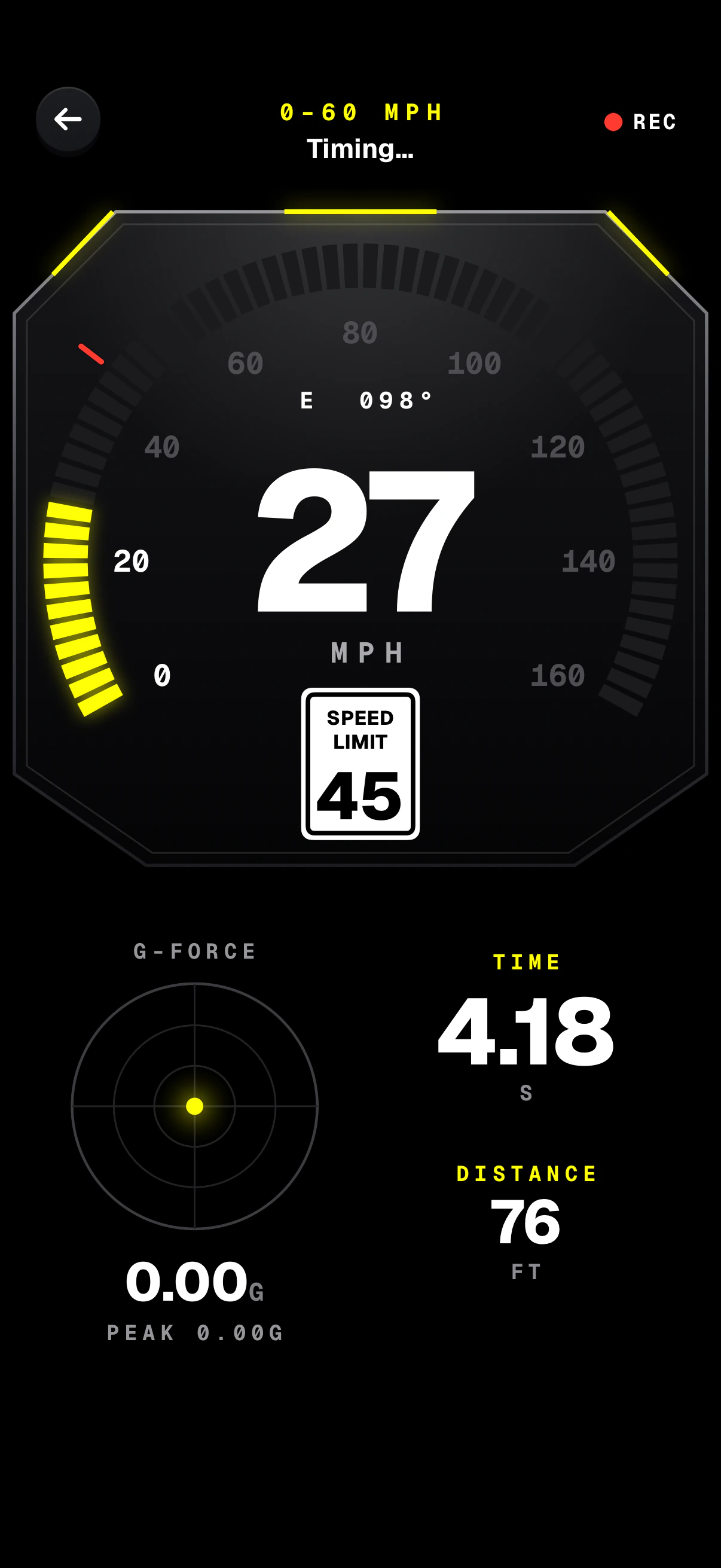
Screens from the iPhone app. The time runs on the stamp while a run is timed, and the result stays on it for 30 seconds.
The runs, as
road signs.
The Stopwatch follows your units: 0–60 and the quarter mile, or 0–100 km/h and 402 m. Pick a sign to see how that run is timed.
PerformanceClosed course only
Launch
Brake
Distance
Launch
Brake
Distance
Pick a sign
0–60 mphA standing start. It arms once you've stopped and starts the instant the car moves; GPS confirms it was a real launch, not a bump. The clock stops at 60.
START arms the run you picked. AUTO re-arms after each run whenever the car stops again, so run after run needs no taps. STOP ends timing.
 Coming