Sign in to which Dashivo?
Your own phones, or your company's fleet. Each has its own account.
New to Dashivo Pro? Talk to us and we'll set up your company.
Dash cam: your phone as a dash cam
Continuous loop recording, stamped with the time, speed and place.
Mount the phone, plug it in and tap record. Dashivo™ records the road continuously, in a loop, like any dash cam, and burns the date and time, your speed and where you were into every frame. It records in 4K on phones that can, or Full HD.
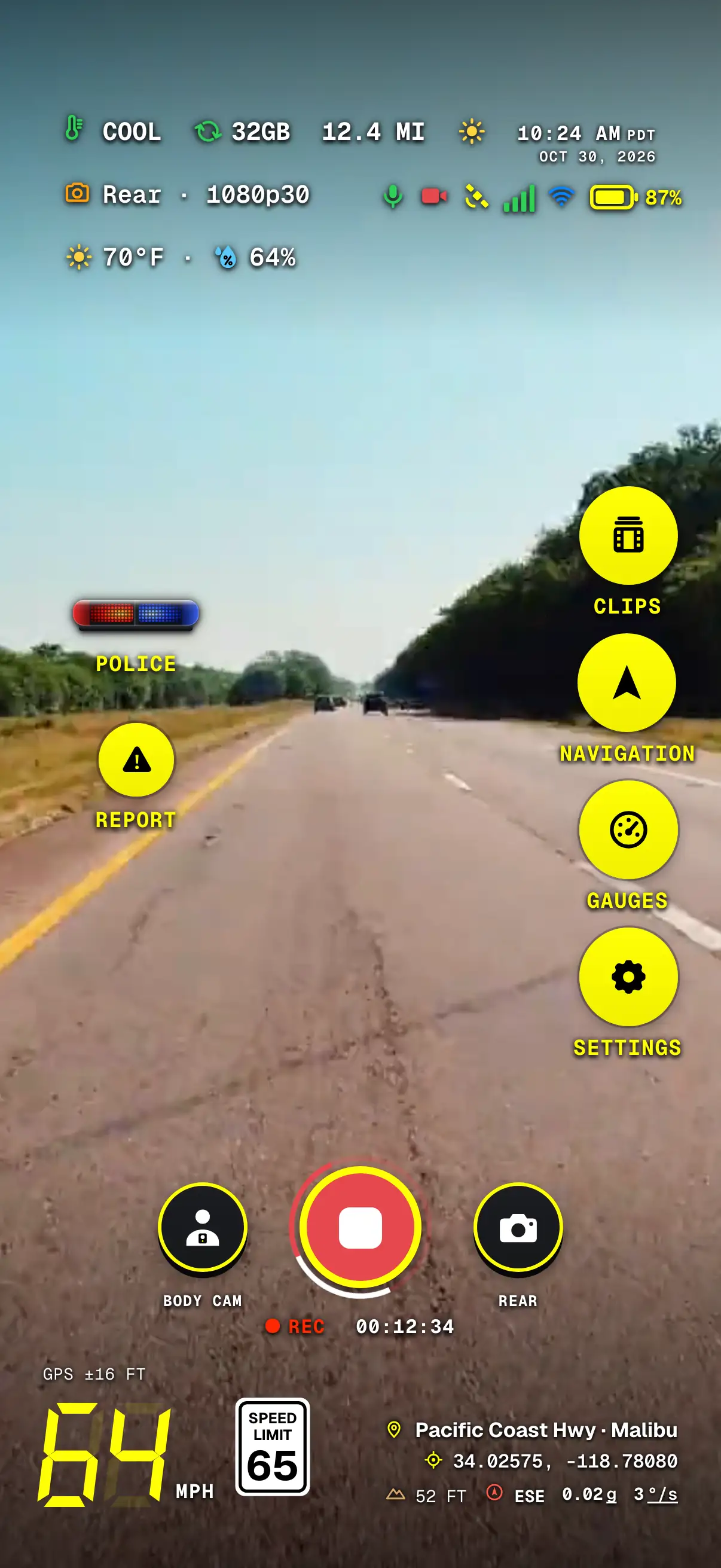
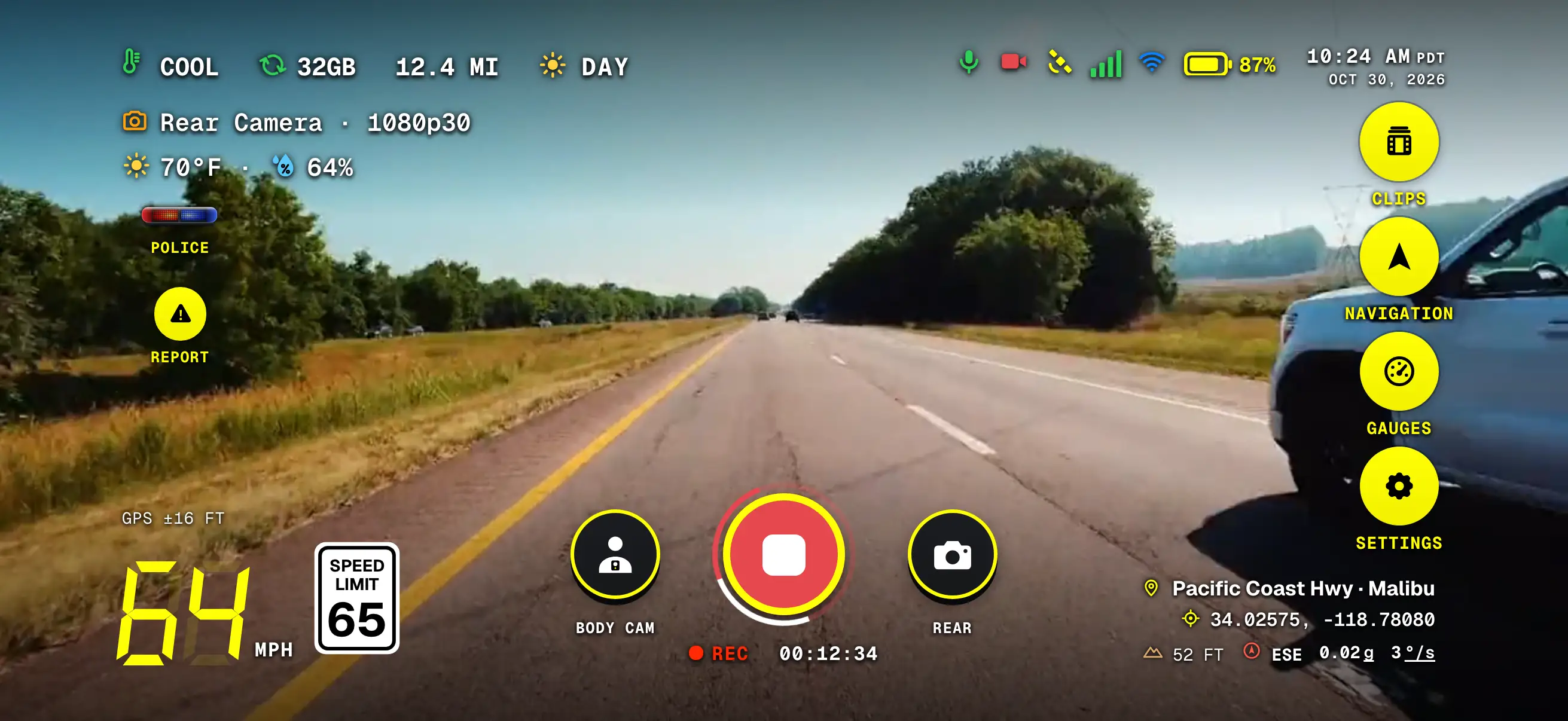
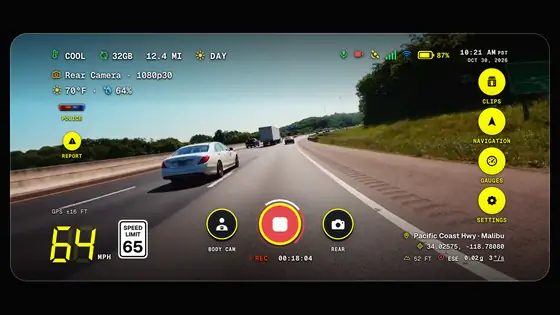
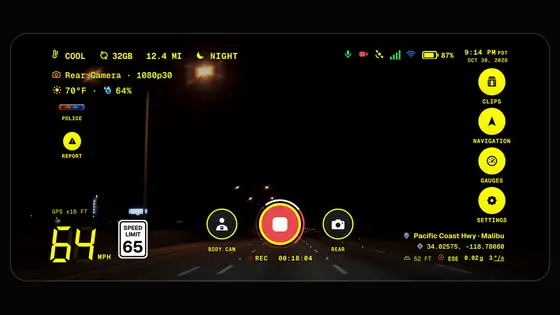
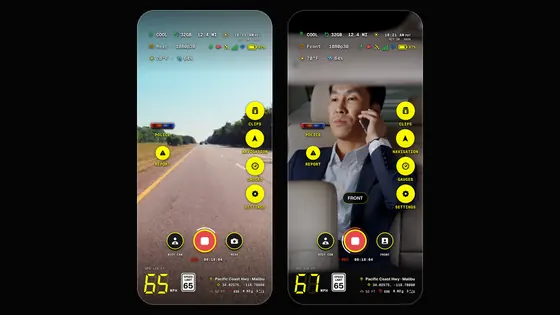
- Camera & qualityThe camera recording, in 1080p, 2K or 4K, and the frame rate.
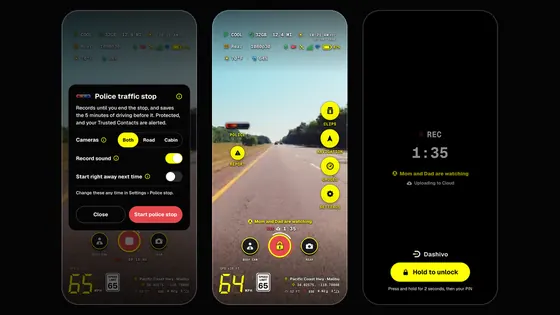
- POLICEOne tap starts a police stop: it records until you end it.
- REC & clip clockRecording, and how long this recording has run.
- Speed & limitYour speed, with the posted limit for the road beside it.
- Clock & dateThe same date and time the stamp burns into every frame.
- The railClips, Navigation, Gauges and Settings, one tap away while it records.
- Street & cityWhere you are, looked up on the phone. Coordinates are saved with every clip.
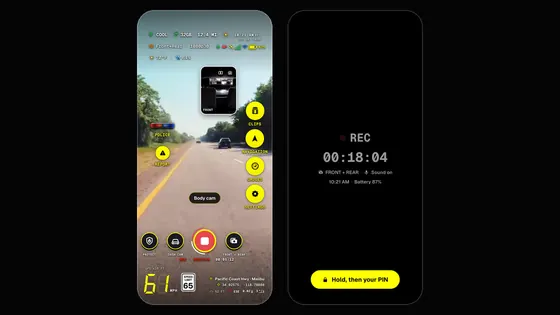
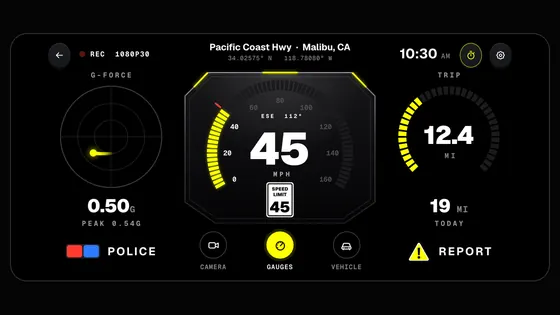
Dashivo's camera screen with sample data, over licensed road clips.
What it records
- Continuous
- Recording in a loop with no gaps, saved behind the scenes in segments of 1 minute (30 seconds to 5 minutes in Settings).
- 1080p
- The default, on every phone: it runs cool and keeps the most hours. 1440p (2K) and 4K on phones that can record them.
- Space
- About 4.6 GB an hour in 1080p, 5.5 GB in 2K and 7.3 GB in 4K. 2K and 4K also run warmer and use more battery.
- Wide
- The default on phones with an ultra-wide lens: it also catches the lanes and sidewalks beside you. Normal matches what you see through the windshield.
- HEVC
- Files about a third smaller at the same quality. H.264 takes more space and plays on anything.
- Sound
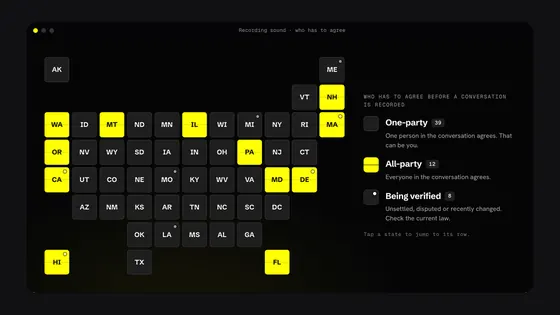
- Records sound with every video unless you turn it off (Video › Record sound). Sound-recording laws vary; some places require everyone's consent, so turn it off where you need to. Recording laws.
- Either way up
- Mount the phone upright or sideways. The HUD turns with it, and the video plays the right way up.
- Plugged in
- Keep it on a charger while you drive: recording all trip long uses more power than most phones can run on battery.
- Heat
- If the phone runs hot, Dashivo records in 720p, and at 15 frames a second if it stays hot, then steps back up once it has cooled. The road camera never stops.
On iPhone, Dashivo has to stay on screen to record: Apple only lets apps use the camera while they're on screen. Mount the phone before you drive and don't handle it on the road.
Loop recording, like any dash cam
- No gaps
- One segment follows the next with nothing lost between them, so one damaged file never costs you a whole trip.
- Oldest first
- When the space you set is full, the oldest recording makes room for the new one. Your photos and apps are never touched.
- Or keep it all
- Turn looping off and nothing is replaced: Dashivo keeps 2 GB free instead.
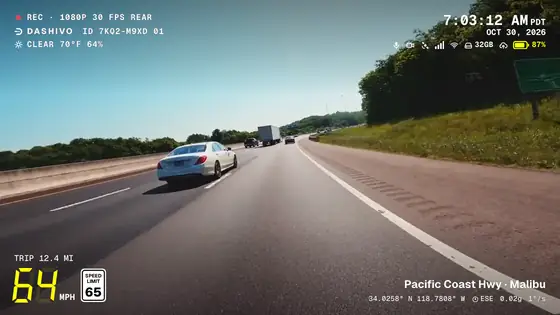
The stamp on every frame
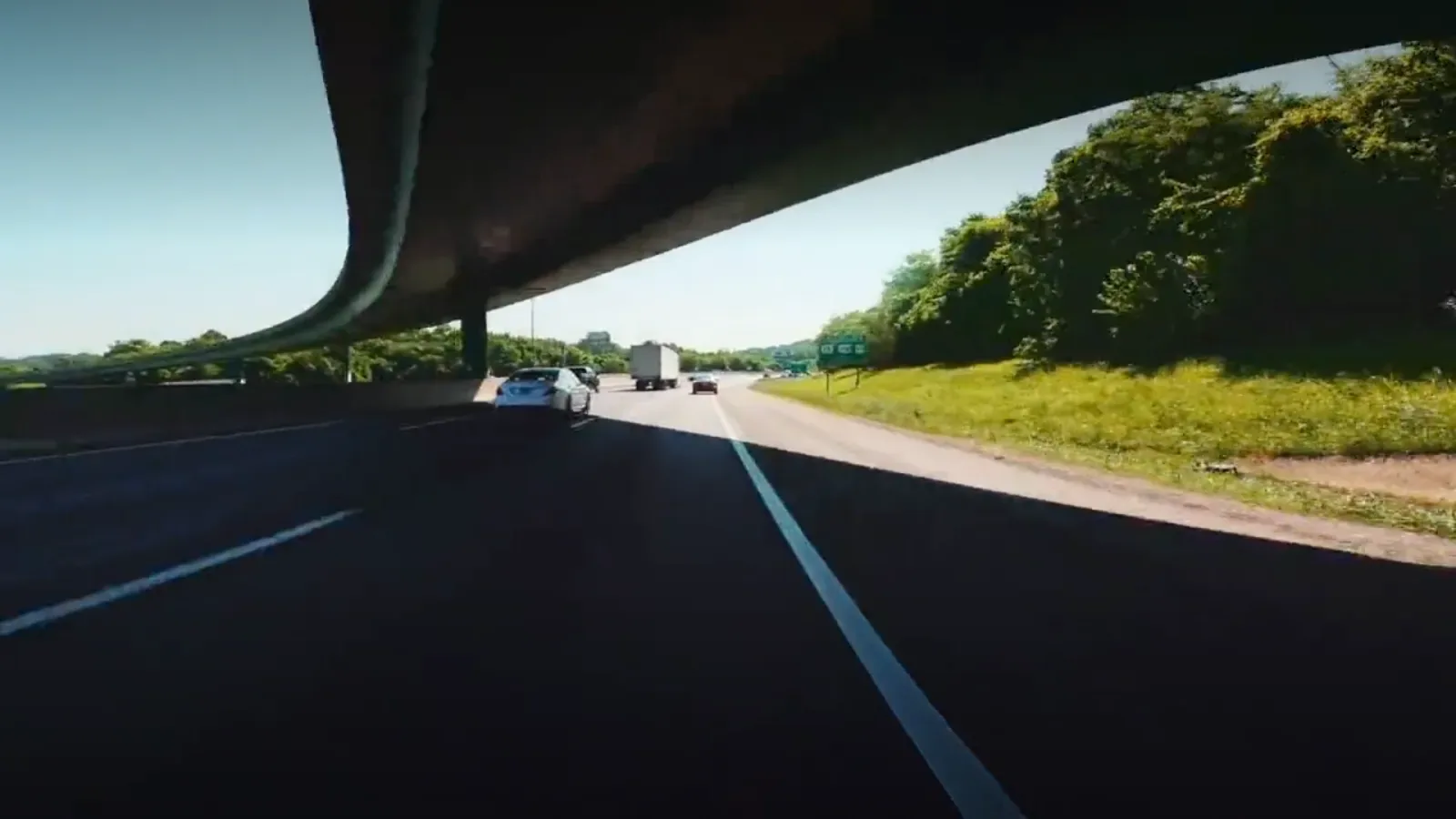
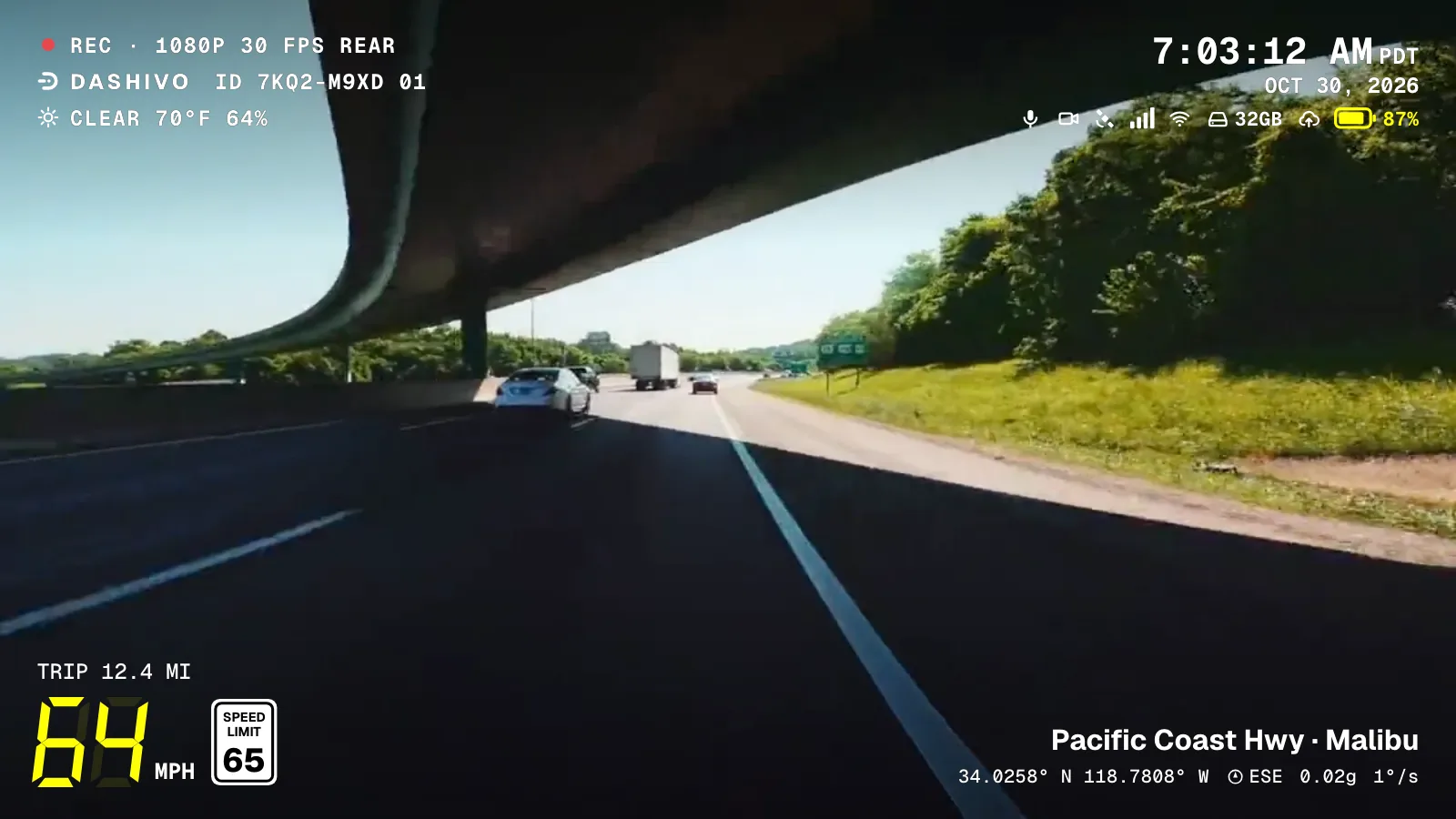
It's part of the video itself, so it shows in any player and when you share a clip.
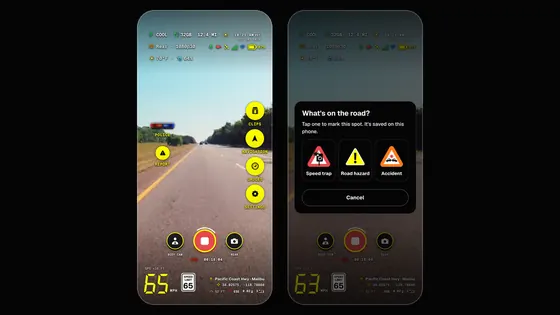
Licensed sample road footage with the stamp laid out as the app writes it into the video file. The weather and the status icons come with any stamp; the live screen's buttons are never recorded.
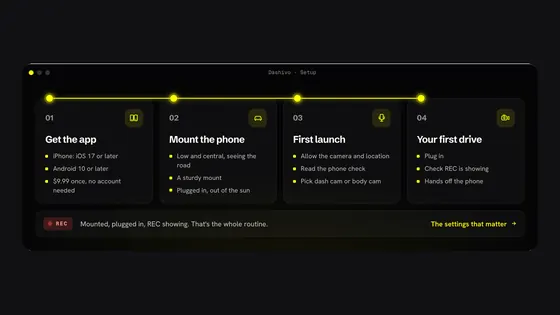
How it works
- 01
Put the phone on a windshield or dash mount (a MagSafe-compatible or magnetic one is easiest), upright or sideways, and plug it in.
- 02
Tap record. Dashivo records continuously and saves the drive in segments behind the scenes.
- 03
Every frame carries the stamp: REC, the date and time, where you were, your speed, G-force, rotation and trip.
- 04
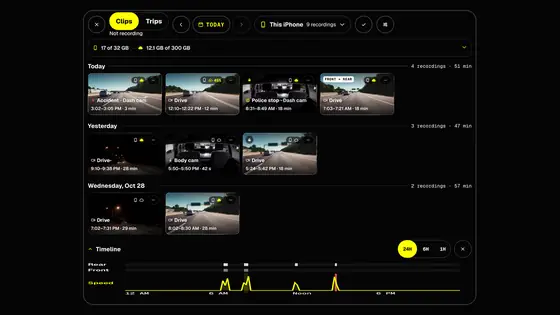
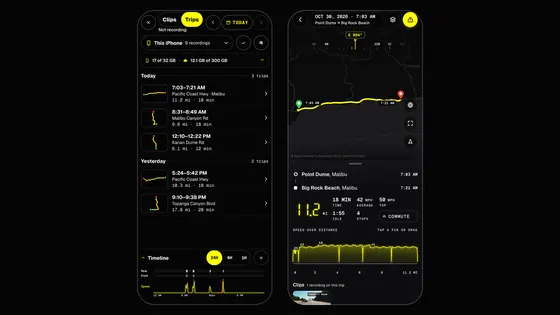
Your drives wait in Clips, by day. When the space you set is full, the oldest recording makes room.
Where it stands
Works today
- Continuous loop recording on iPhone and Android
- 4K on phones that can, Full HD on every phone
- The stamp, the HUD and the speed-limit sign
- The Low-light camera, and the HUD's night look after sunset
- The road and the cabin at once
With Dashivo Cloud
- Copies of the clips that matter, locked on your phone first
- Copies to your own Google Drive, or iCloud Drive on iPhone
Black Box OS (Beta)
- A copy of every clip on a box hidden in the car, over its own Wi-Fi
- Impact protection
The road and the
cabin, at once.
Turn on Front and rear in Settings › Dash & body cam and Dash cam mode records both cameras at once: the road ahead on the rear camera, the cabin and your riders on the front camera, with sound, each into its own file. Everything else stays the same: the HUD, the speed-limit sign, the stamp and loop recording. Made for rideshare and delivery drivers on Uber, Lyft, DoorDash, Instacart and the rest.
- Included
- 1080p each while both record

- Road aheadThe rear camera, through the windshield. 1080p while both cameras record.
- CabinThe front camera, with sound: the front seats and your riders in the back.
- Magnetic mountBelow the mirror, where your state allows, or on the dash or the console. It bends, tilts, swivels and rotates; phones without MagSafe take a thin plate.
- USB-C powerKeep it charging, most of all with both cameras on. Each phone needs its own.
- Second phoneOn the rear shelf or rear window: the road behind. It records on its own.
- Each camera, its own fileNamed to the second, so the road, the cabin and the road behind line up.
An original 3D illustration, not footage. Windshield mounting rules vary by state, so mount where yours allows; the dash or the console is the easy option. What's allowed
- Dash cam, road and cabin
- For driving. The road fills the screen with the HUD and the posted limit; the cabin shows in a small picture; tap it to flip the two, or set them side by side with the phone sideways. Loop recording keeps going all shift.
- Body cam, front and rear
- For on foot, on a bike or a phone you carry, with Touch protection and Screen off. Body cam
- Which phones
- iPhone XS and XR and newer, and many recent Android phones. On others, Front and rear is greyed out and the rear camera records as usual. Which phones work
- If the phone gets hot
- Both cameras drop to 720p first; the cabin camera pauses only as a last resort. The road never stops.
- Police stop
- POLICE works the same: the cameras you choose record until you end the stop. Record one camera or front and rear during a stop.
- Riders and sound
- Tell riders they're on camera. Check your platform's rules and your state's recording laws.
A magnetic mount you can aim
Any sturdy windshield, dash or console mount works. A magnetic one with a bendable arm makes it easy: the phone snaps on, the arm bends to where you want it, and the head tilts, swivels and turns until both cameras see what they should.
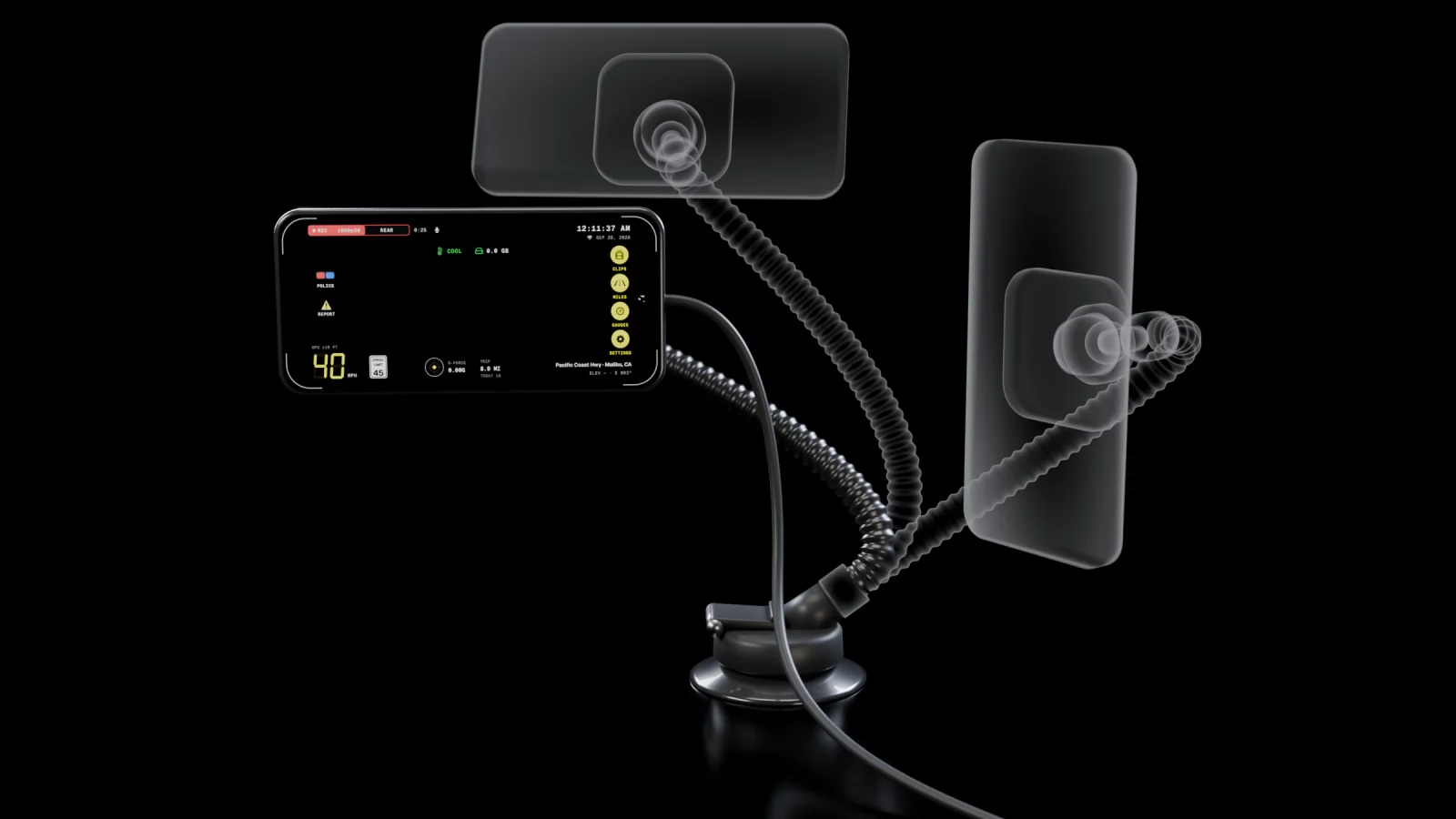
- BendThe arm holds any curve, so the phone sits just where you want it.
- Tilt and swivelThe ball joint aims the rear camera at the road and the front camera at both rear doors.
- RotateSideways or upright. The HUD turns with the phone.
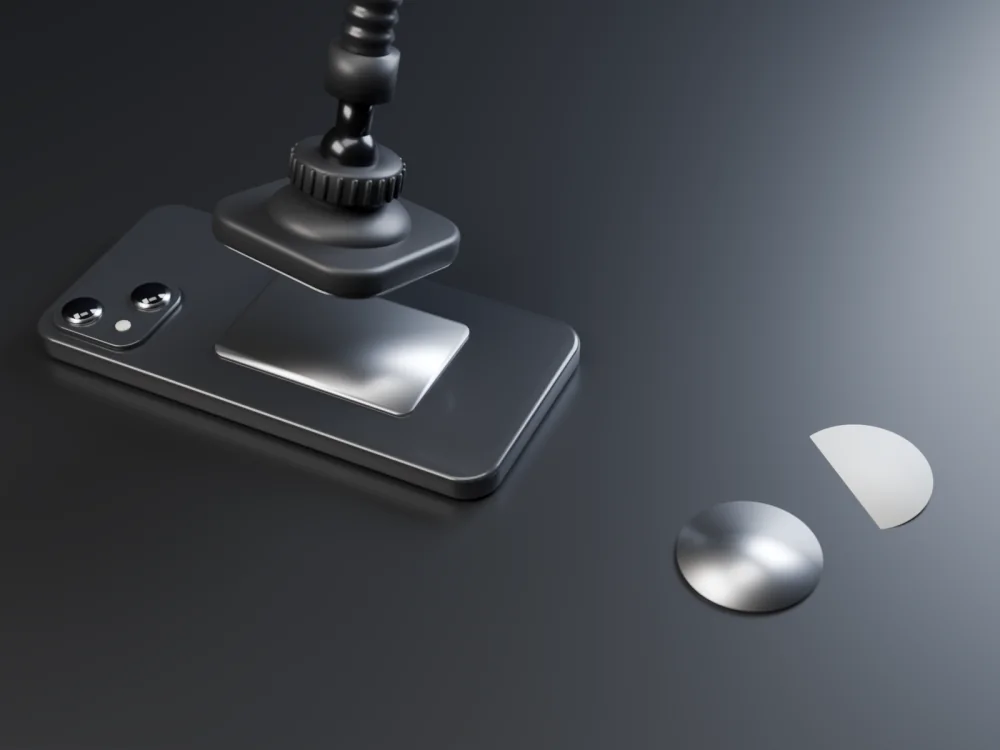
- Just below the mirror, in the middle of the windshield, where your state allows. From there the front camera sees over the seats and the rear camera over the hood. What to know
- Or on the dash or console. The easy option where windshield mounts are limited. Never in front of you: keep your view of the road clear.
- Keep it charging. Plug it into USB-C power: two cameras use more power than one.
- Out of direct sun, near an air vent when you can, so the phone stays cool.
- A second phone on the rear shelf or the rear window records the road behind, on its own, with its own charger.
- Set it up parked, then leave it alone while you drive.
Uber, Lyft, DoorDash and Instacart are trademarks of their owners. Dashivo isn't affiliated with them.
Set it once,
then drive.
Quality, the stamp, the field of view and the Low-light camera share one page: Settings › Video. Pick once and Dashivo remembers, on every drive.
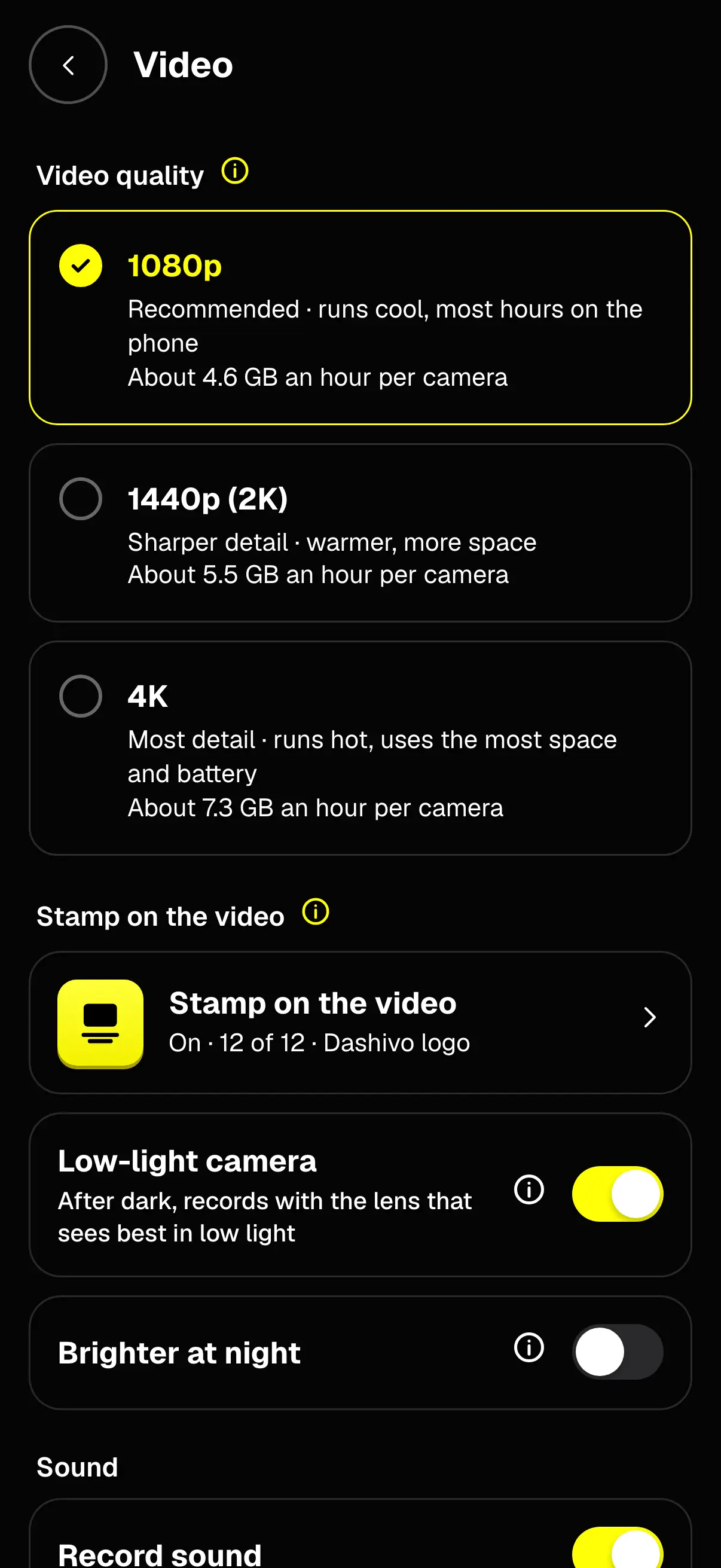
- Video quality1080p, 1440p (2K) or 4K. 1080p is the default and runs cool; 4K takes about 7.3 GB an hour.
- Stamp on the videoTwelve items to pick from, all on to start, and the Dashivo logo.
- Low-light cameraOn by default: after dark it records with the lens that sees best in low light.
- Brighter at nightOff to start: 24 frames a second after dark, for a little more light.
- SoundRecord sound or not. Frames per second, detail, file type and clip length wait under Advanced, further down.
 Coming